
Creating Surveys – Administrator’s Guide
This feature allows administrators to collect employee feedback, measure engagement, and support company-wide initiatives through custom surveys.
1. Log in to your portal (e.g., yourcompany.instaff.org) as an Administrator.
2. From the left-hand menu, go to Admin, then select Survey Management.
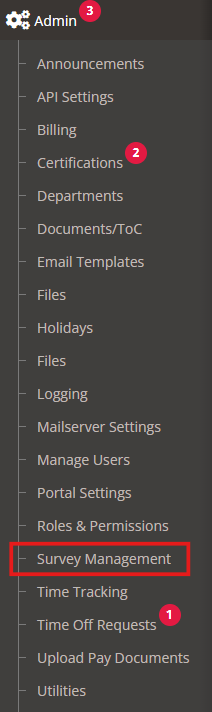 ‘
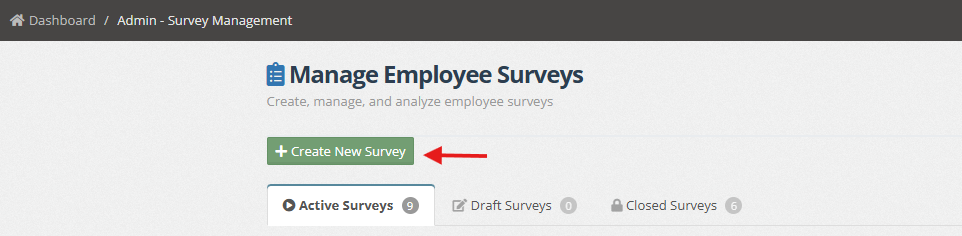
3, Click +Create New Survey (green button)
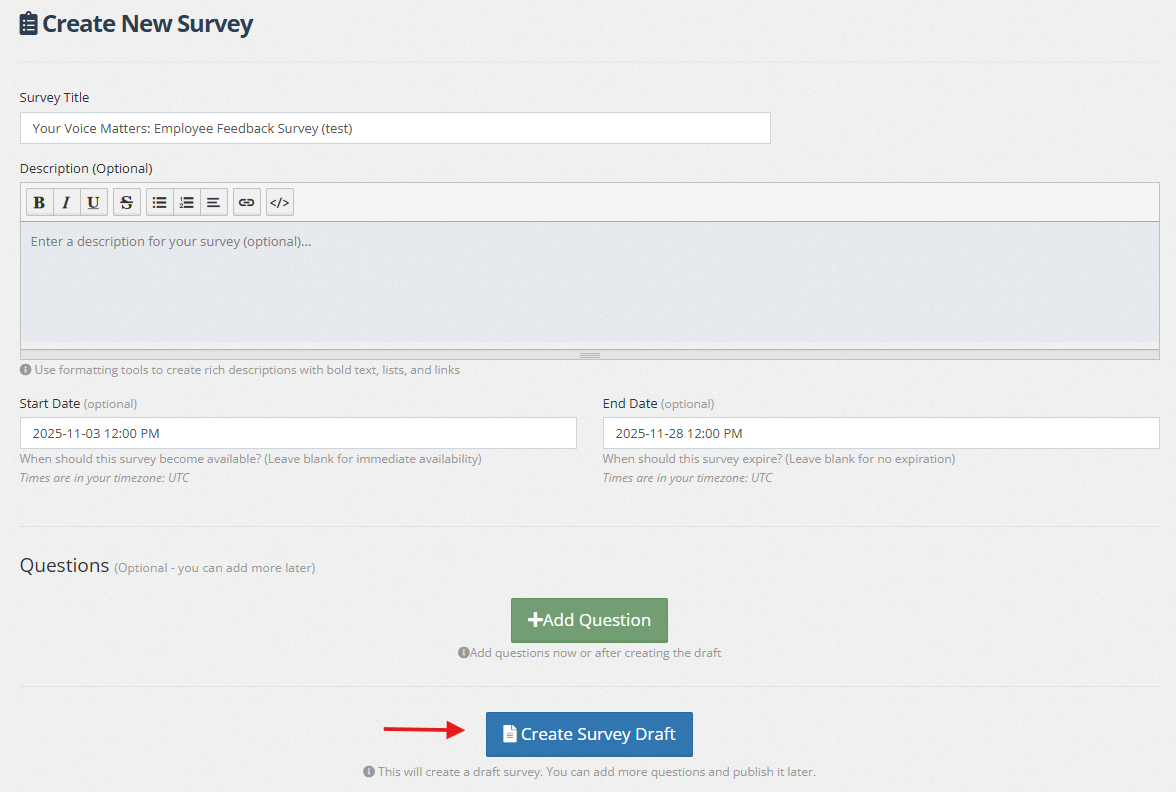
4. Enter the required details.
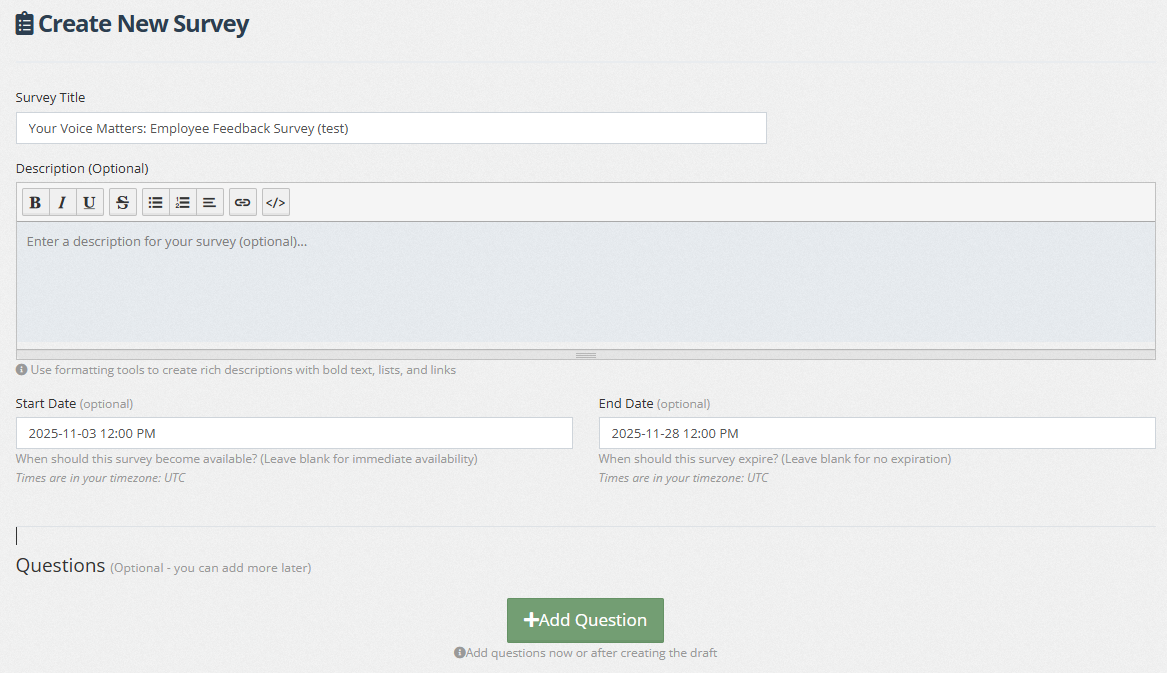
- Survey Title – Enter the title or topic of your survey.
- Description – (Optional) Add a short description or context for the survey.
- Start Date – (Optional) Set the date the survey will open. Leave blank for immediate availability.
- End date – (Optional) Set the survey’s expiration date. Leave blank for no expiration.
5. Click +Add Question to include your survey questions (can also be added later).
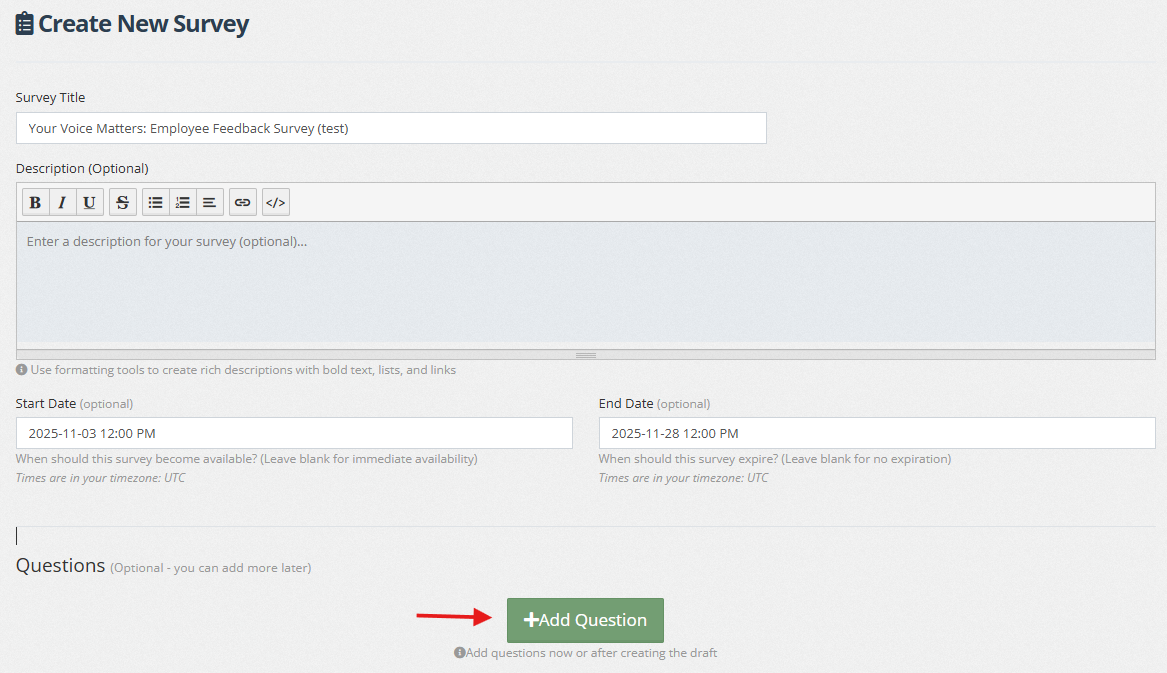
6. Enter the Question/s for the survey.
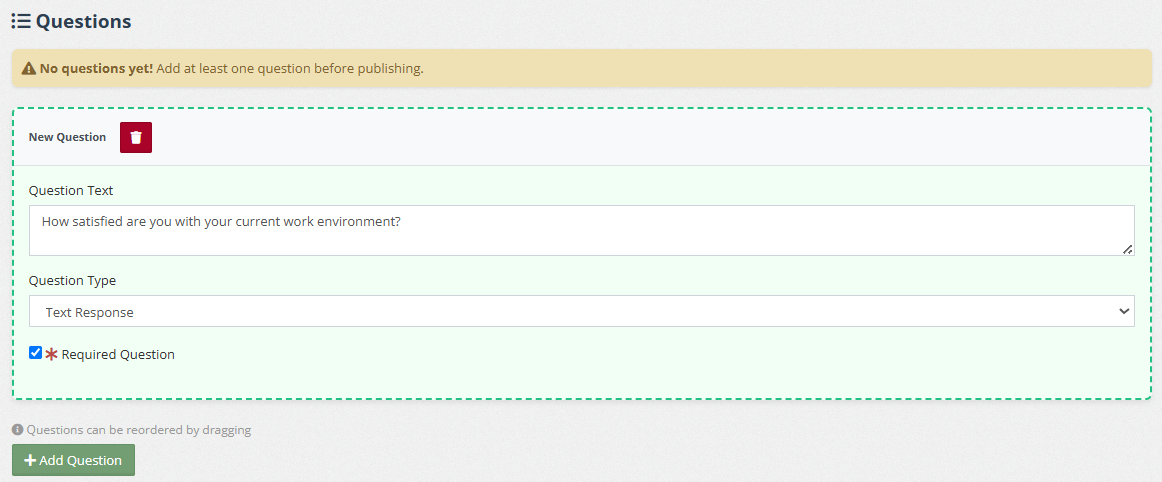
- Question Text – The survey question.
-
Question Type – Choose from text, multiple choice (single or multi-select), or ranking/ordering.

- Required Question – Check the box if this question must be answered.
7. Click Create Survey Draft to save your progress.
7. Review your draft. Click “Preview Survey” to see a preview, or “Publish Survey Now” to make it live.
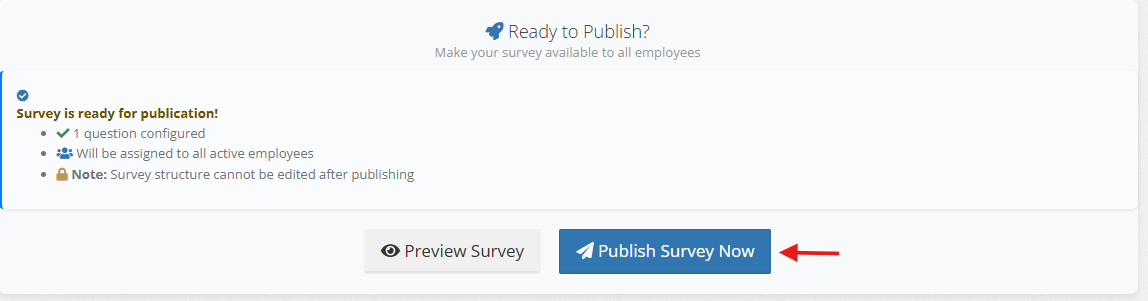
You can also check: