
InStaff Employee Guide – Access Tokens
Welcome to InStaff!
With this guide, you will be able to set up your account and view your Paystubs and Tax Forms.
This guide will cover the following
- Setting Up your Account
- Logging into your Account
- Viewing your Pay Documents and Tax Forms
- How to Change your Password
- How to Reset your Password
Setting Up your Account
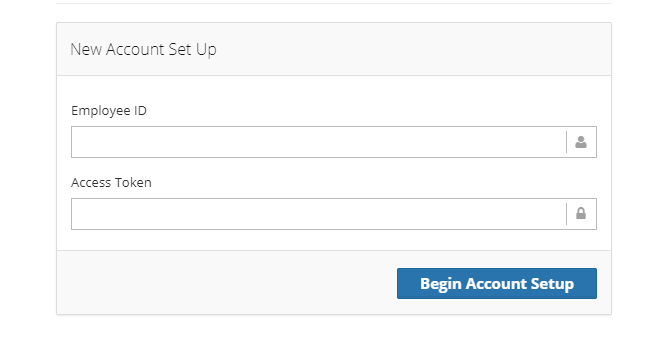
Visit the link provided by your Company’s payroll staff
Enter Employee ID and Access Token provided by your payroll staff
Enter your email address and password for log in purposes.
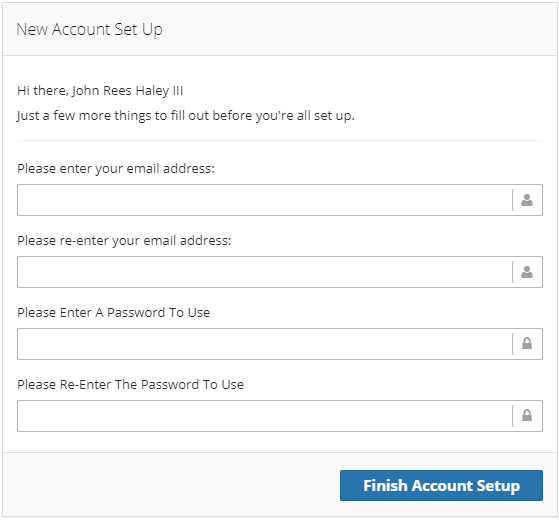
Click Finish account set up.
You will receive an email asking you to confirm your email. Once this has been clicked you will now have access to your InStaff portal. (Note: Some email clients will make URL links unclickable. In this case you will just need to copy and paste the link to a browser to access the link)
Logging into your Account
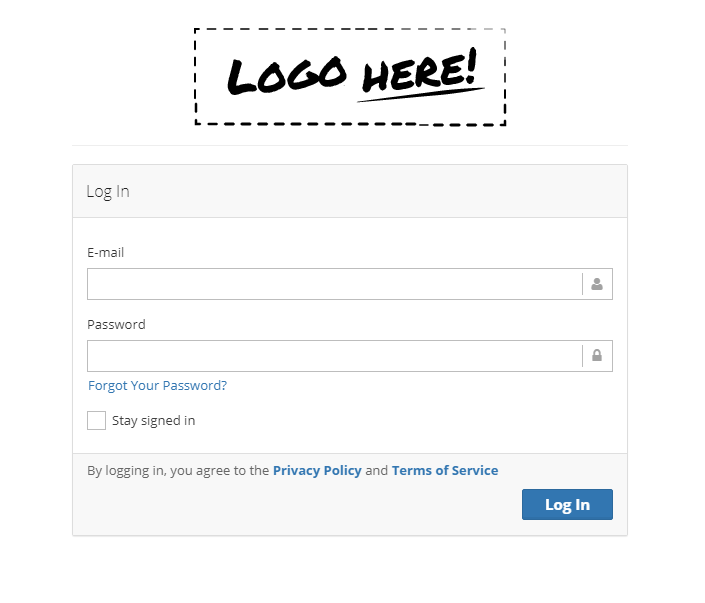
Navigate to your company InStaff domain (ex: yourcompanyname.instaff.org)
Enter in your email address
Enter in your password
Click Log In
If you check off “Stay Logged In” your account will remain logged in for 7 days. If left unchecked your account will remain logged in for 30 minutes.
Viewing your Pay Documents and Tax Forms
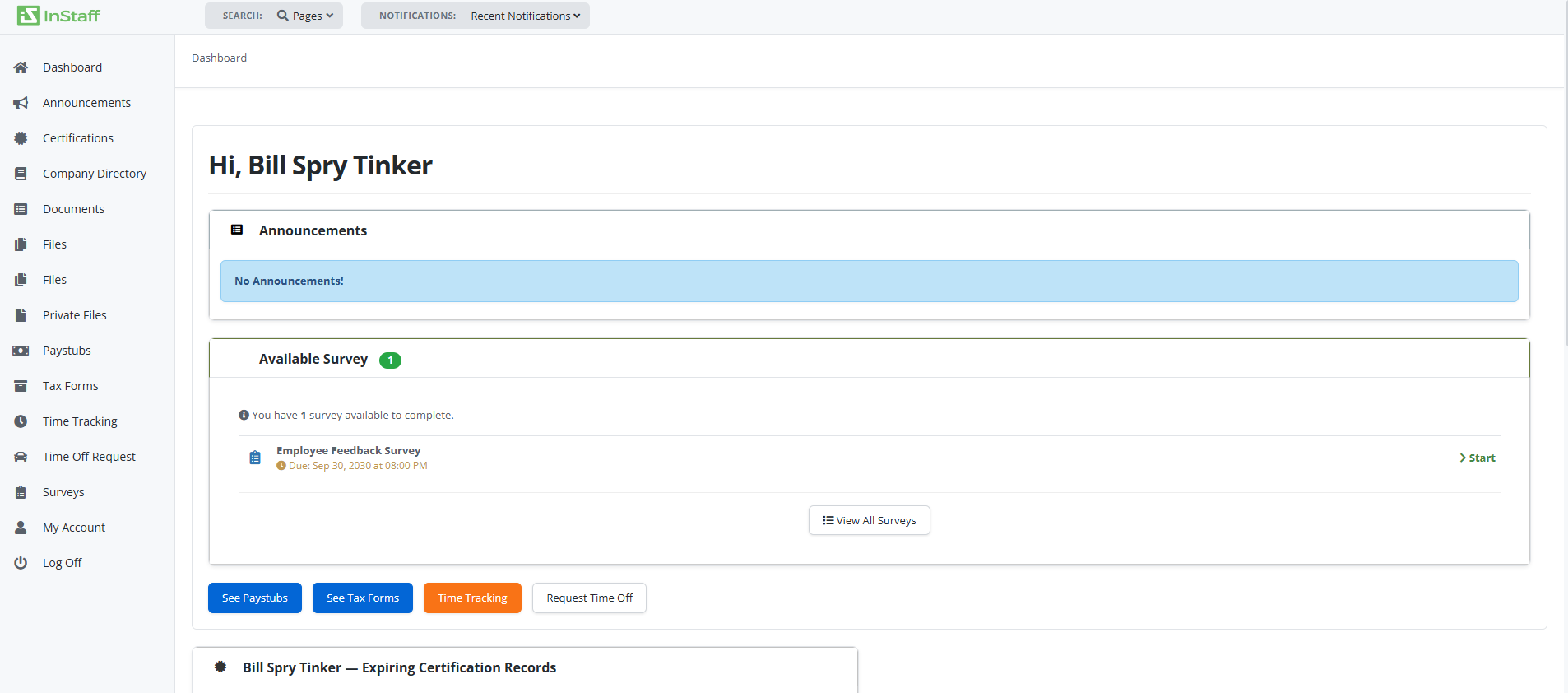
- After logging into your InStaff account you will be taken to your InStaff Dashboard
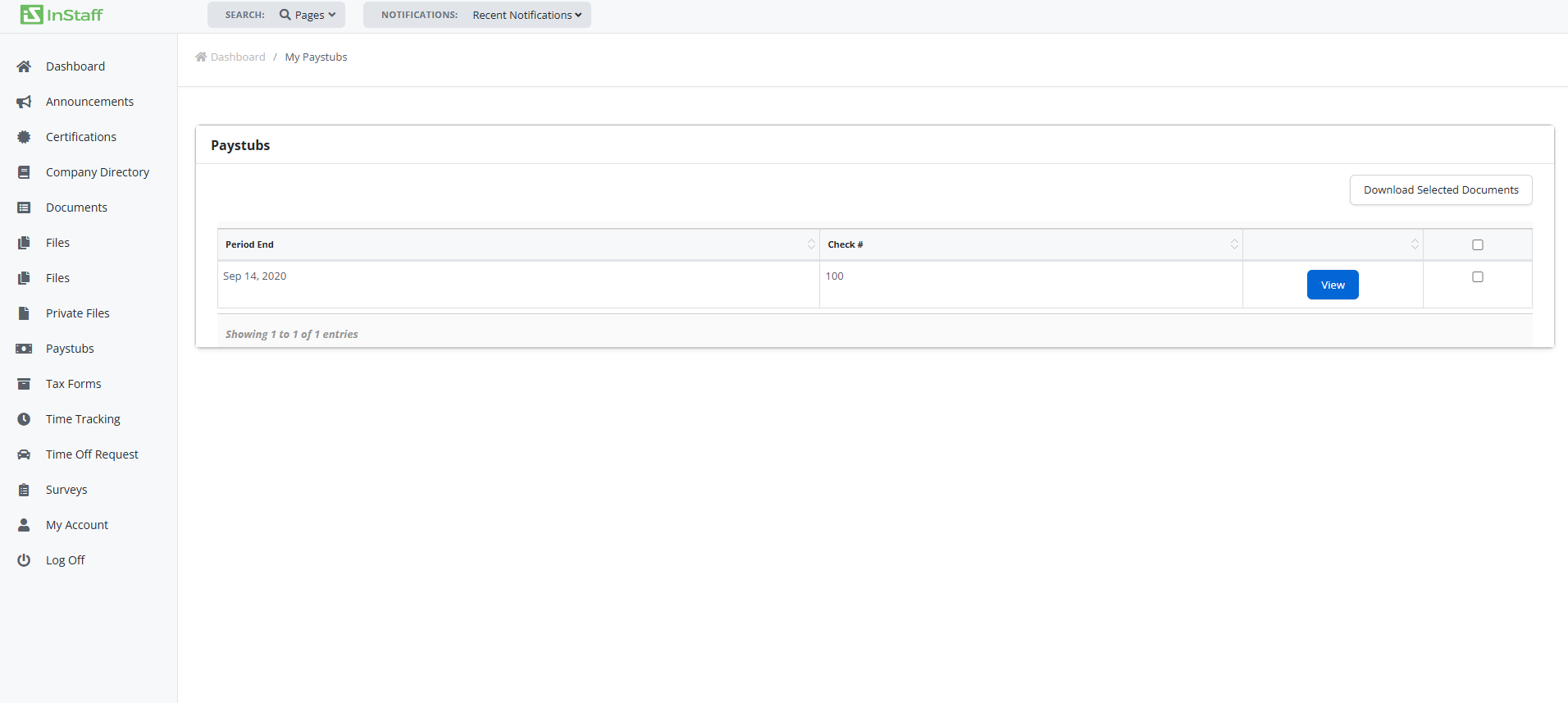
- Click See Paystubs to view your Paystubs or Click See Tax Forms to view your Tax Forms. Your documents will be viewable on the respective screens
- Click PDF to view the individual documents
How to Change your password
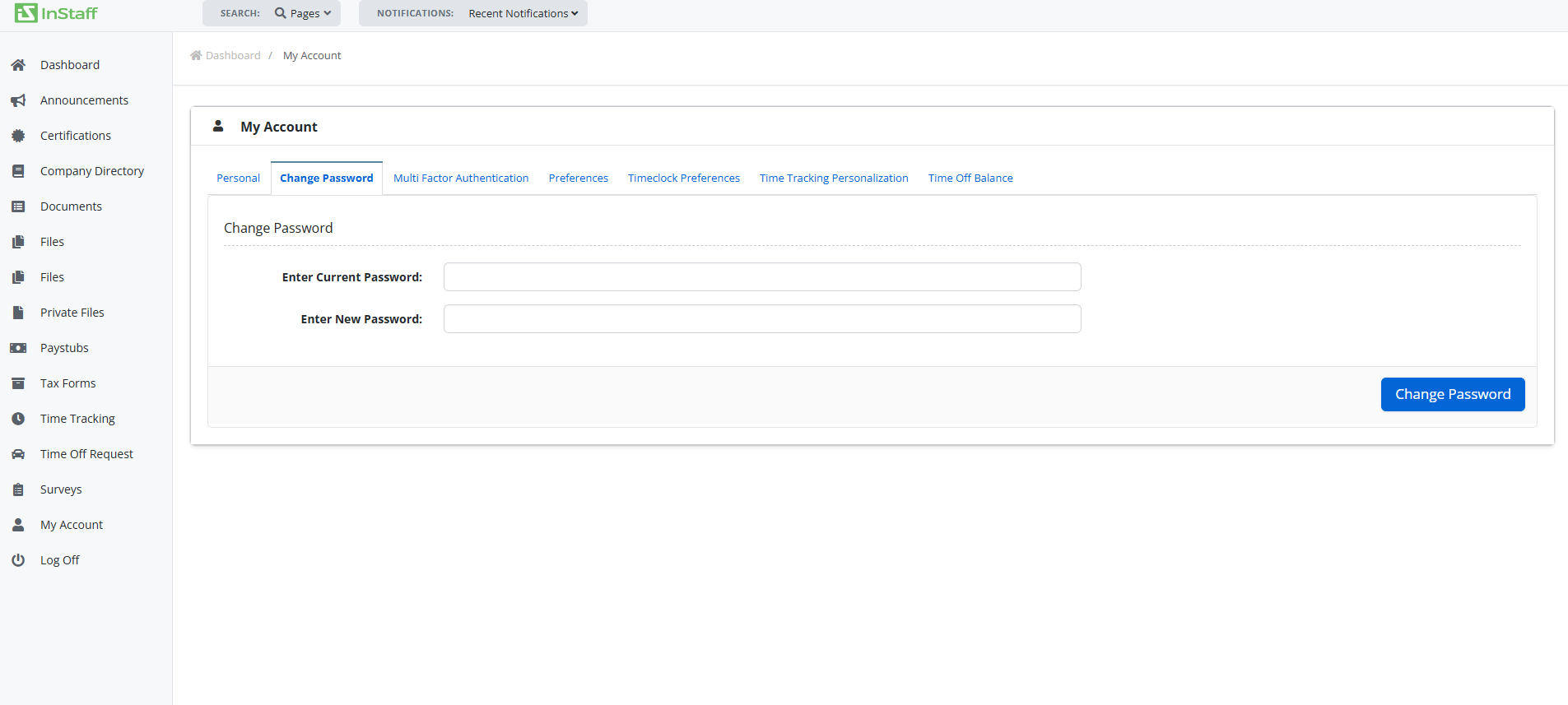
- After logging in to your InStaff portal
- Click “My Account”
- Click on the “Change Password” tab.
- Enter your current and new password.
- Click “Change Password”. Your password has now been changed and you will be able to log in with your new password.
How to Reset your password
- On the main login screen of your Company InStaff portal.
- Click “Forget Password”.
- This will send a password reset link to your email on record allowing you to create a new password.