Multi-Factor Authentication Setup Guide
1. Visit the App store on your mobile device.
2. Search for and download and authenticator application (for example: Google Authenticator or Microsoft Authenticator).
3. Login to your company InStaff Portal.
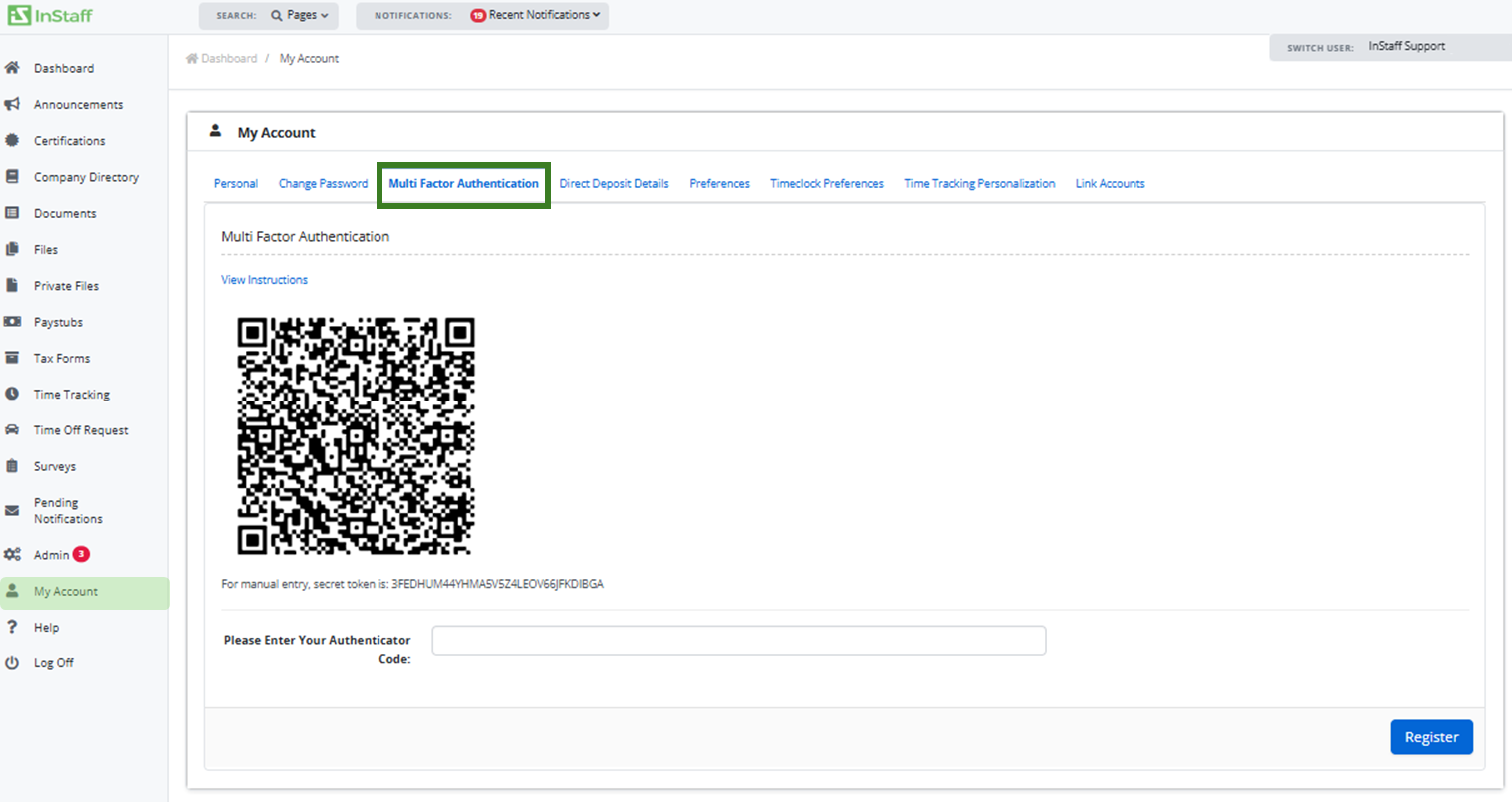
4. Go to My Account > Multi Factor Authentication.
5. Open your authenticator app and choose + Add an account.
6. Scan the QR Code below OR Manually enter the secret token below in the app.
7. Click the newly added account to retrieve the password code.
8. Enter the six-digit password code into the “Please Enter Your Authenticator Code:”.
9. Click Register.
10. Once Registered, 6 recovery codes will be generated. You must save it immediately as these codes will disappear when you navigate away from the page. These codes will be used in case you cannot access your phone or authenticator app.

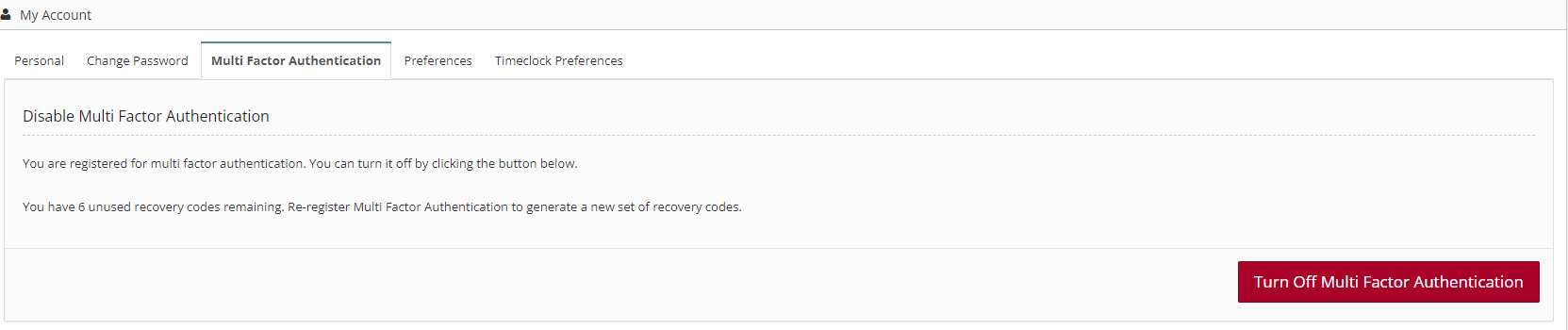
Turning Off your MFA
- Login to your InStaff Portal.
- Go to My Account > Multi Factor Authentication.
-
Click Turn Off Multi Factor Authentication.