
Setting up a Date Based Time Off
Enabling a Date Based Time Off will let users enter dates without time since the Workday start time and end time will be defined in a later step.
1. Login as Administrator.
2. From Sidebar menu, click Admin > Time Off Requests.
3. Click on the Settings button.
4. Select Date Based from Time Off Request Unit (Date Based option requires Time Off — Department Settings after saving).

5. Click Save.
After saving, the Time Off – Department Settings will appear as shown below.
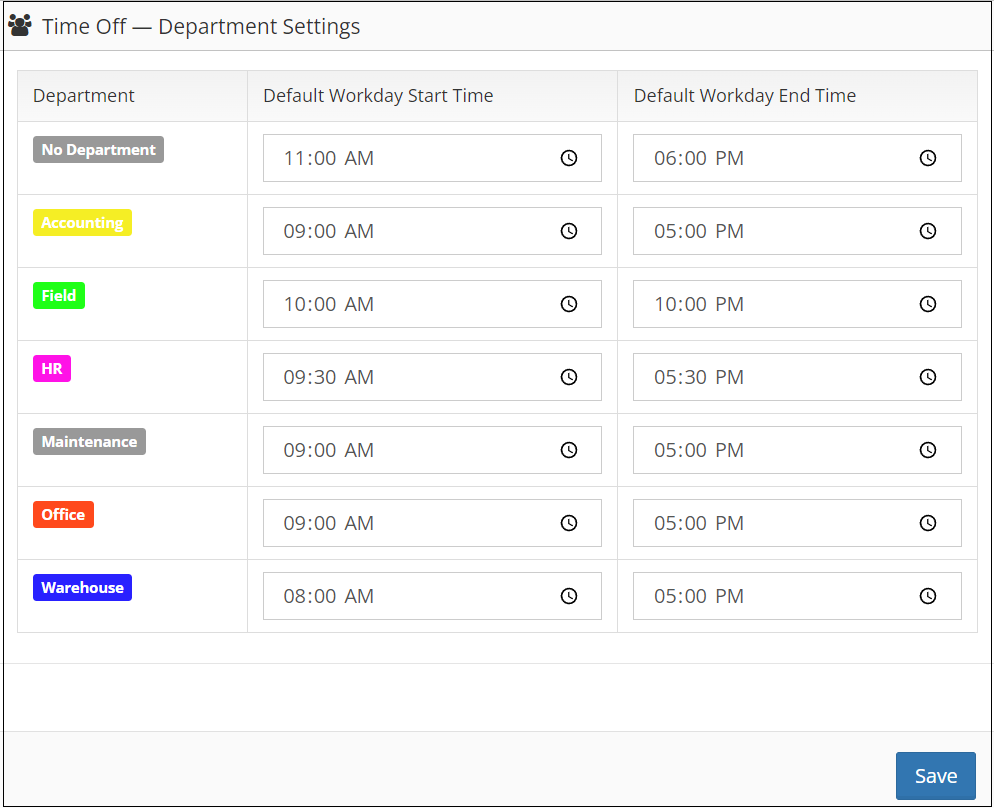
6. Enter Default Workday Start Time and End Time for each department.
7. Click Save.