
Adding a New Certification Type – Administrator’s Guide
1. Log in to your portal (e.g., yourcompany.instaff.org) as an Administrator.
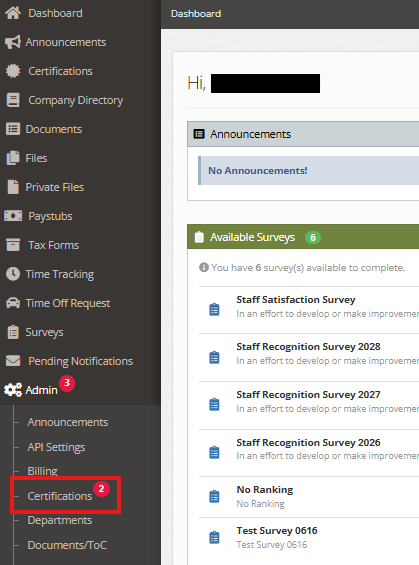
2. From the left-hand menu, go to Admin, then select Certifications.
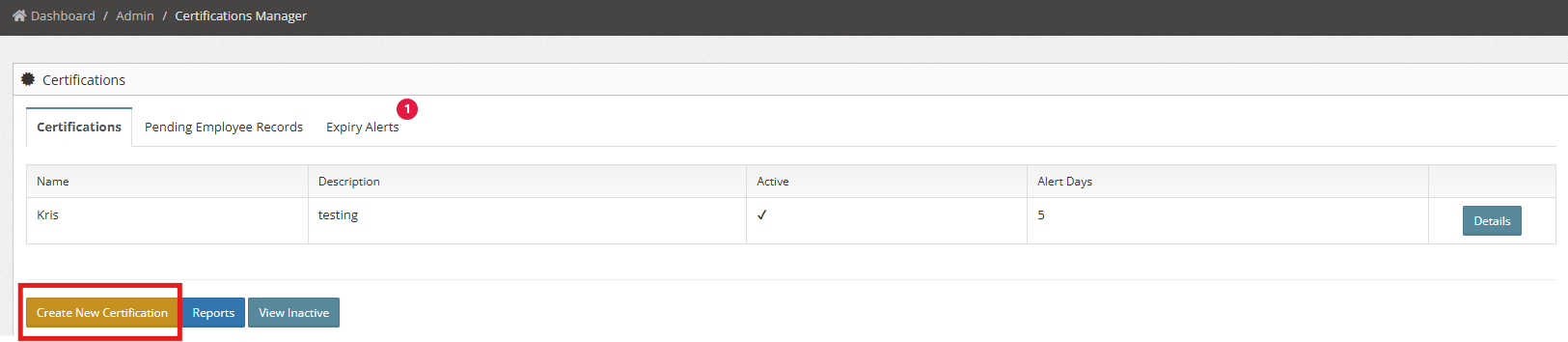
3. Under Certifications, click Create New Certification
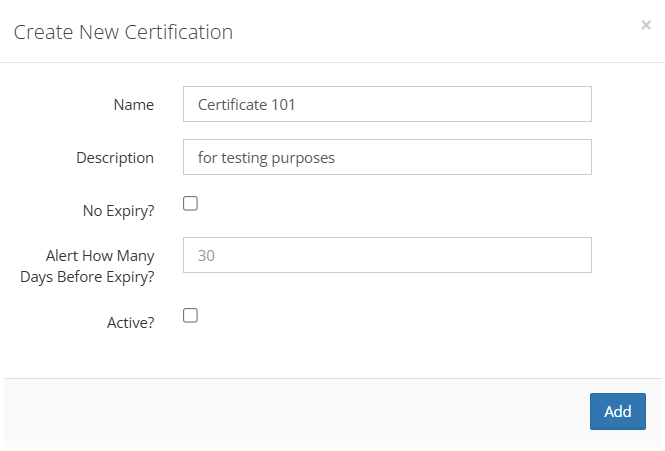
4. Enter the required certification details:
- If the certification does not expire, check the No Expiry? box.
- If the certification has an expiry date, leave the box unchecked and set the number of days before expiry to receive a reminder.
- Alert How Many Days Before Expiry? – Set how many days in advance the system will alert you before an employee’s certification expires. This helps ensure timely renewals and compliance.
-
If the certification is active, check the Active? box.
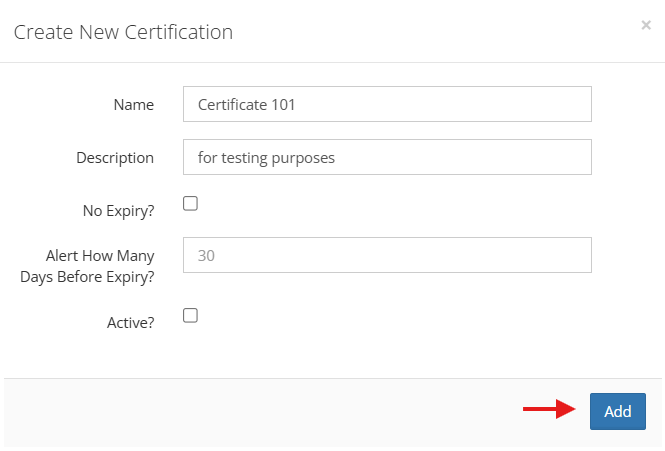
5. Click Add to save.
You can also check:
How to Upload Certification Document
Where to view the inactive certifications
Where to check the Certification reports