How to Merge Accounts
1. Login as Admin User.
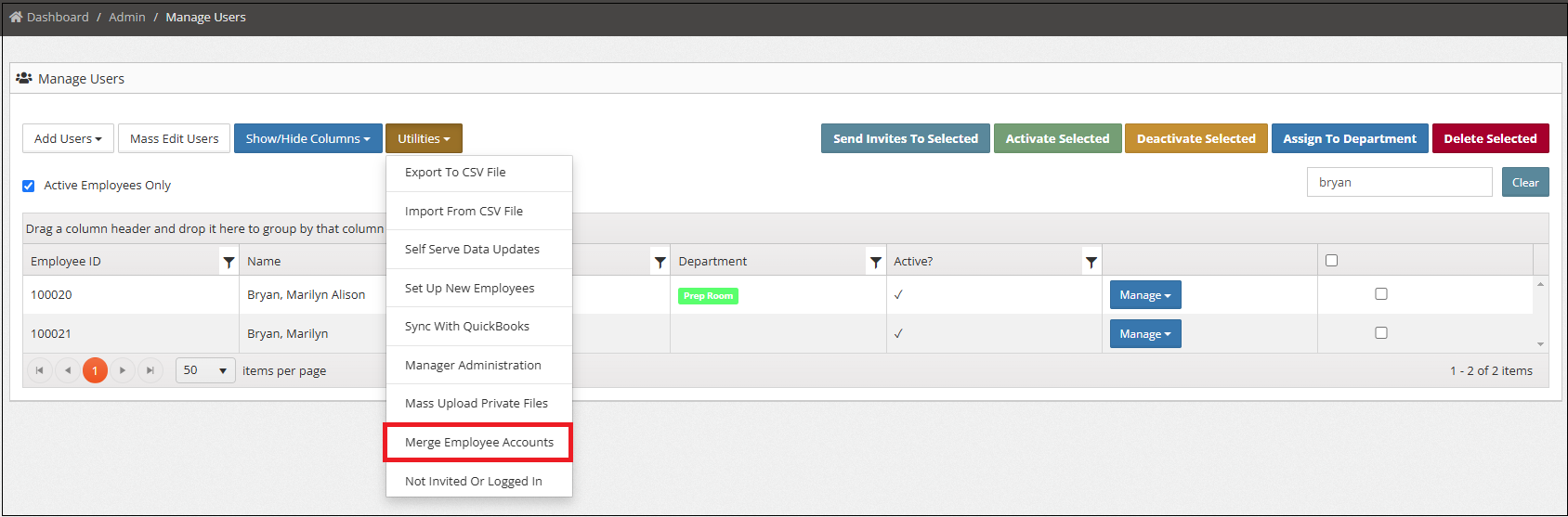
2. Go to Admin > Manage Users.
3. From Utilities, Select Merge Employee Accounts.
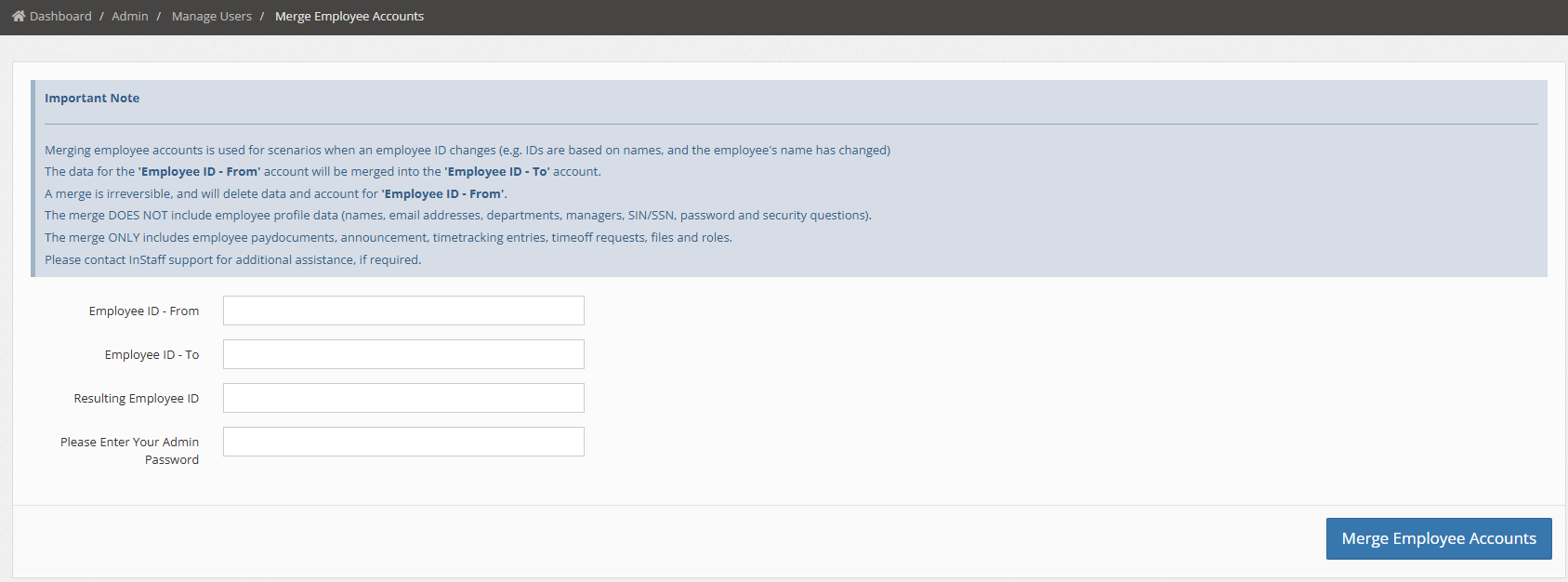
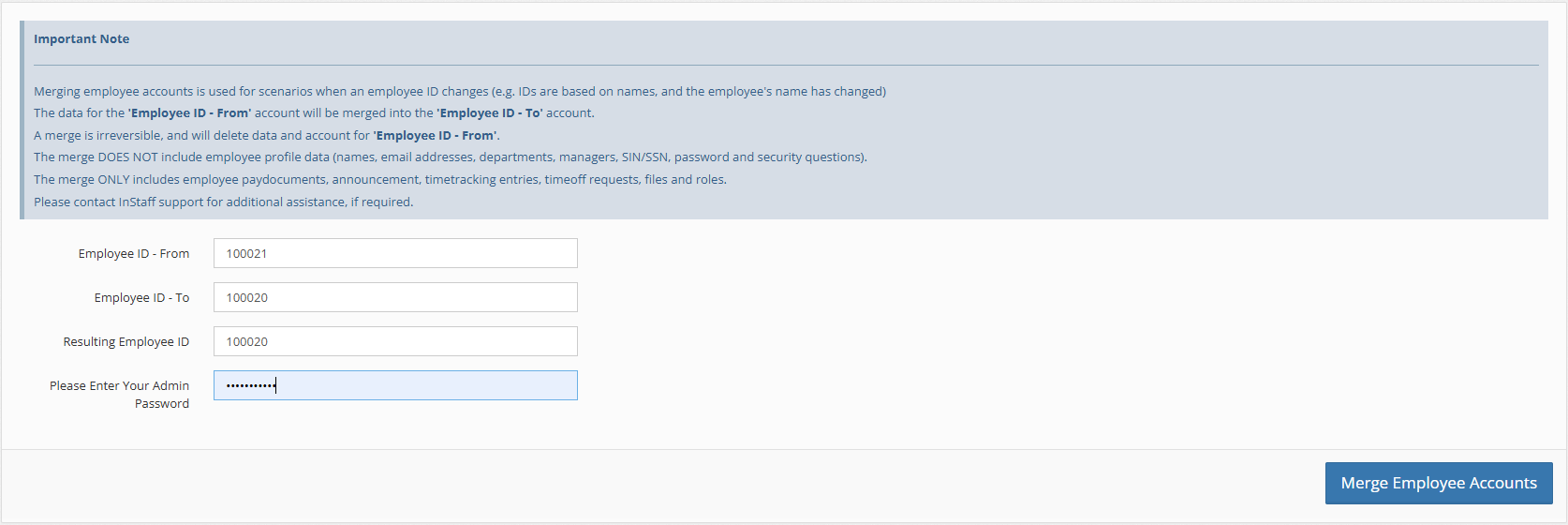
4. Fill out the form.
Employee ID – From: The account to that will be merged.
Employee ID – To: The account that will be merged into.
Resulting Employee ID: New Employee ID
Please Enter Your Admin Password: Your admin password.
**Note:
The merge DOES NOT include employee profile data (names, email addresses, departments, managers, SIN/SSN, password and security question).
The merge ONLY includes employee pay documents, announcement, time tracking entries, time off requests, files and roles.
5. Click Merge Employee Accounts.
How it Works:
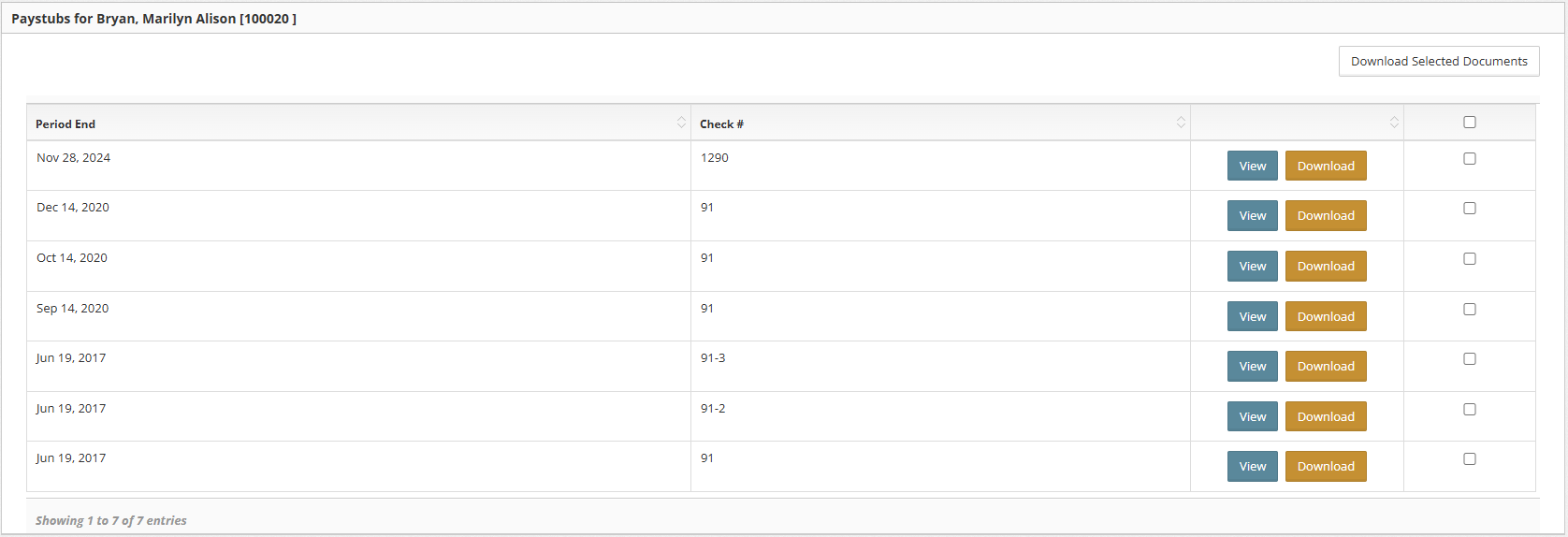
Marilyn has two accounts in the portal, and the admin wants to merge her 100021 account into 100020. Currently, account 100020 contains 6 pay documents, while account 100021 has 1 pay document.
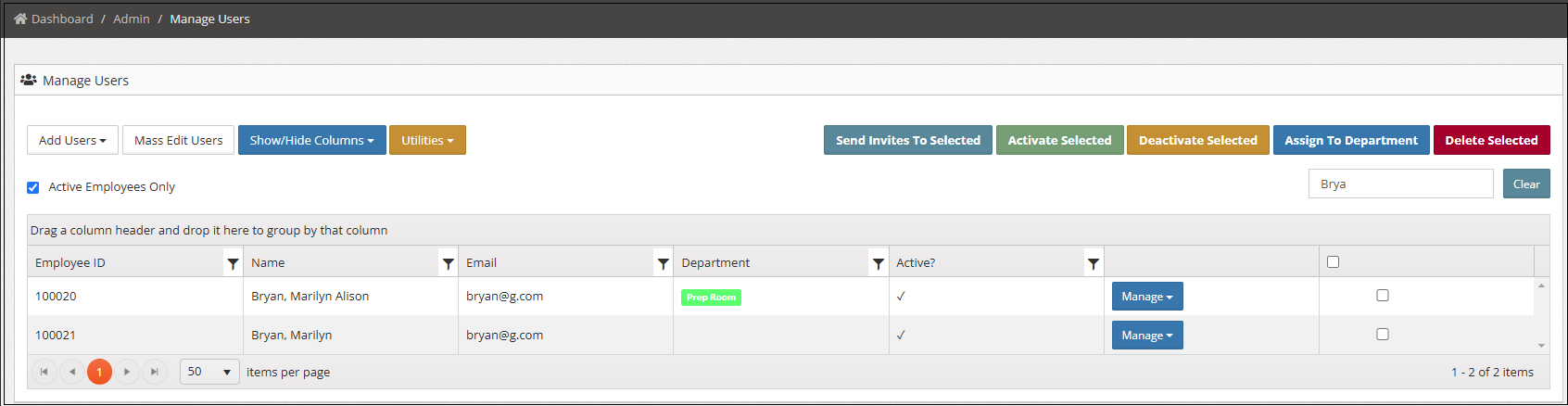
Result After Merge:
100021 has been deleted and her file was moved to 100020.