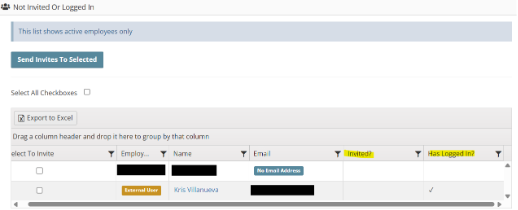
How do I check if an employee has been invited and has logged in?
It’s important to know whether your employees have been invited and if they’ve logged in. This helps ensure everyone has access to important documents and updates. In this guide, you’ll learn how to quickly check each employee’s invite and login status in your portal.
There are two ways to check this.
1. Log in to your portal (e.g., yourcompany.instaff.org) as an Administrator.
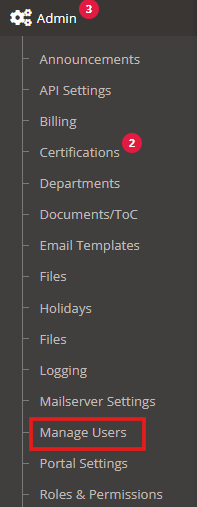
2. From the left-hand menu, go to Admin, then select Manage Users.
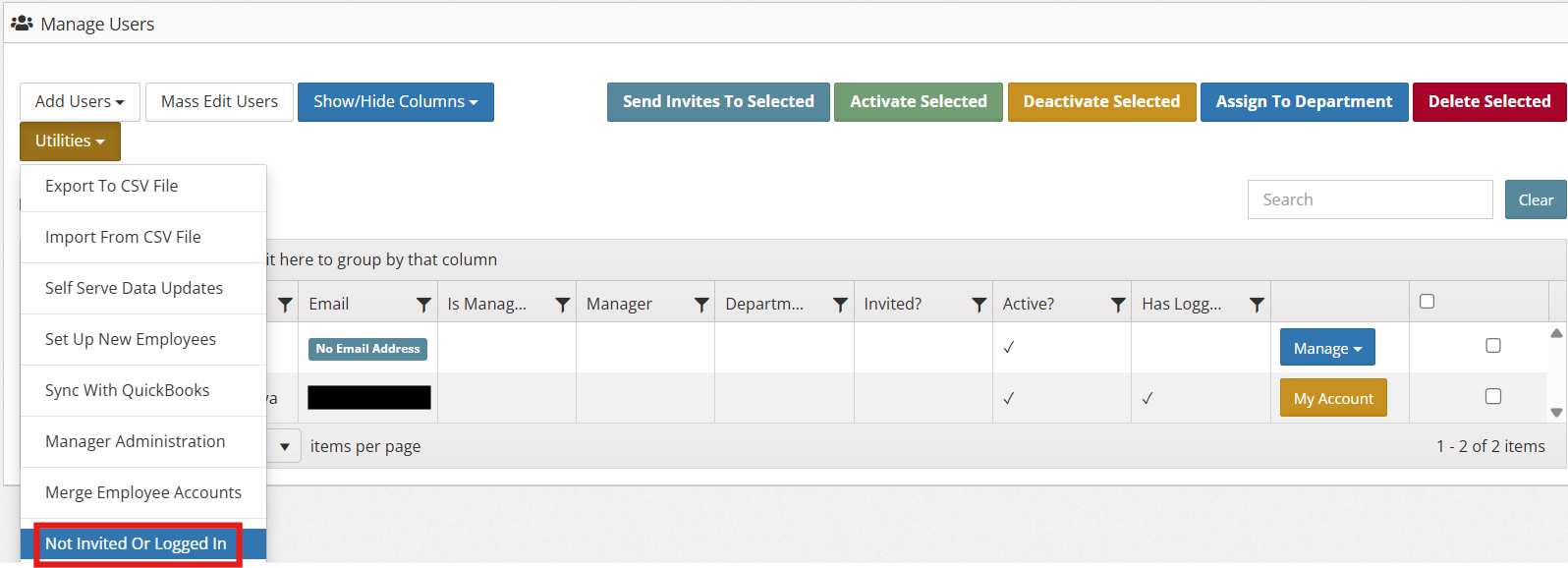
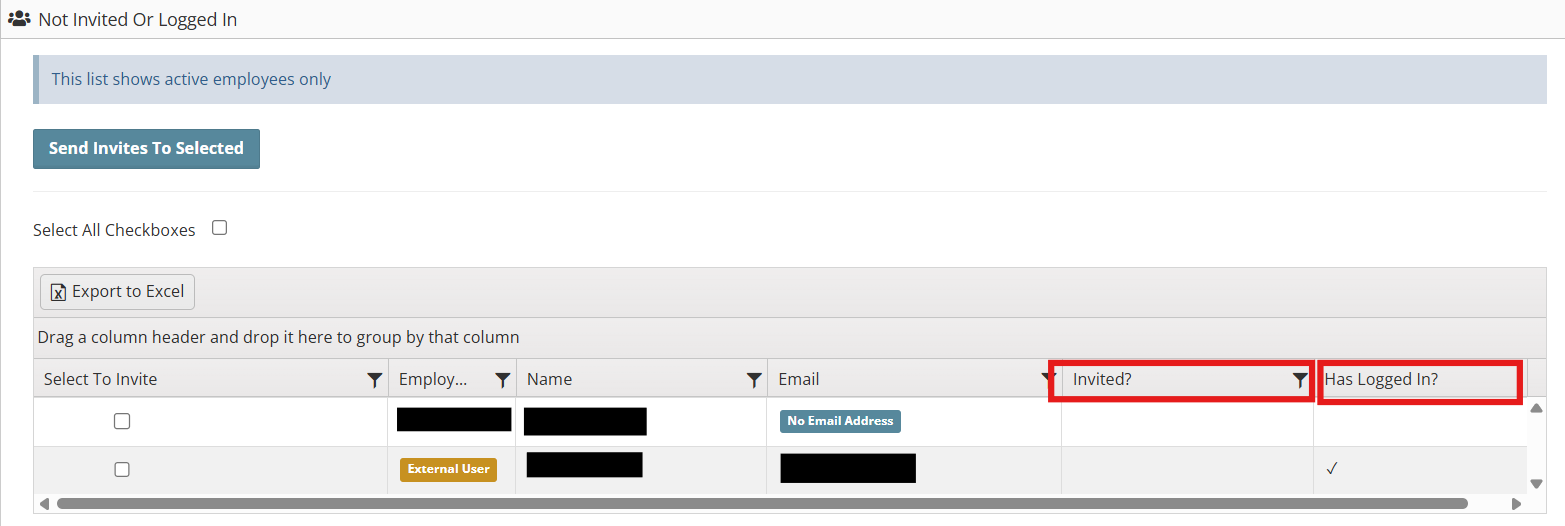
3. Click the Utilities dropdown button and select Not Invited or Logged In.
4. Use the search bar to find the employee by name or email.
5. Check the column ‘Invited?’ and ‘Has Logged In?’
Note: If there’s a check mark means they have logged in and have been Invited. 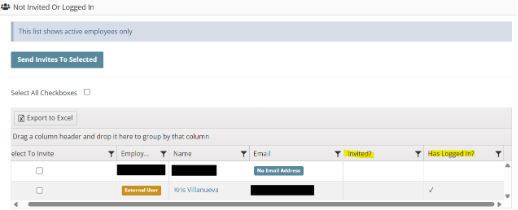
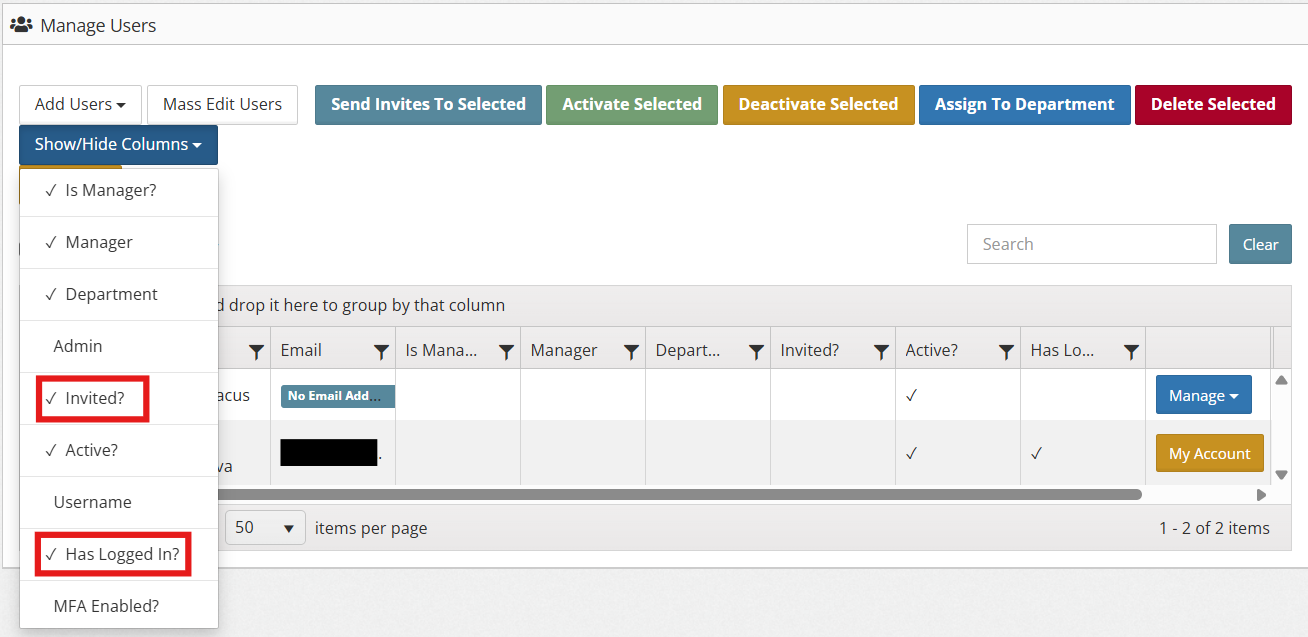
Another way to check whether they are invited or have logged in is to display/show the columns in the list view.
1. Log in to your portal (e.g., yourcompany.instaff.org) as an Administrator.
2. From the left-hand menu, go to Admin, then select Manage Users.
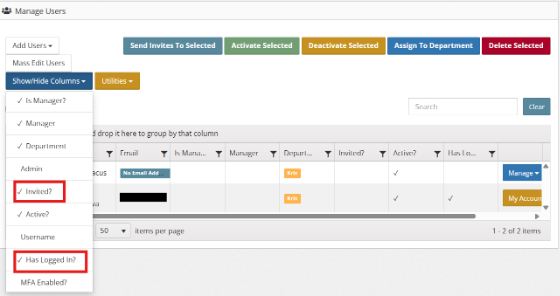
3. Select ‘Invited?’ and ‘Has Logged In?’
For better visibility and easier viewing, you can rearrange the column headers on the Manage Users page.
1. To rearrange, click and drag the desired column header and drop it into your preferred position.


2. Your preferred column order will be saved automatically and will remain the same even after refreshing or returning to the module.