
Configure Microsoft Graph API Mail Server Settings
- Login as Admin.
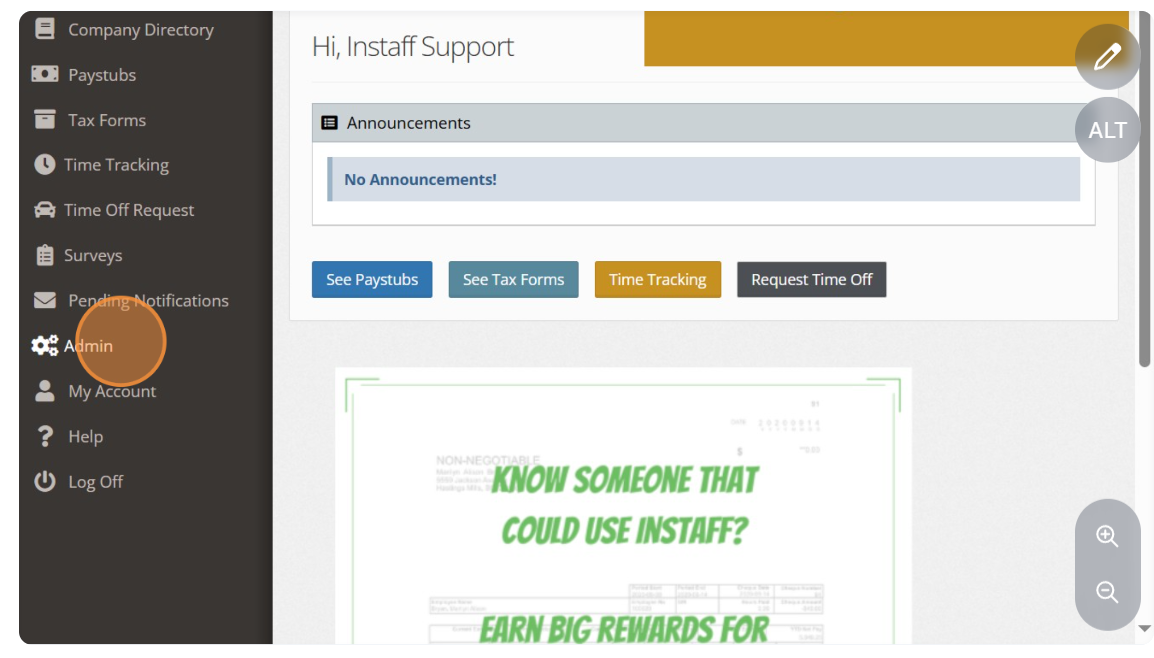
- Click “Admin”.
-
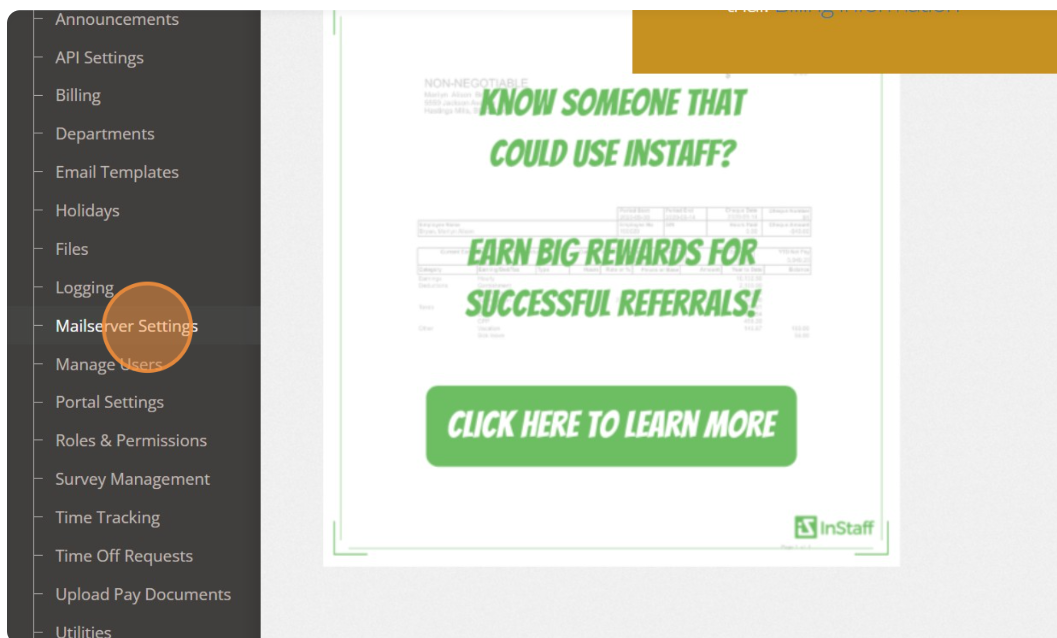
Click “Mailserver Settings”.
-
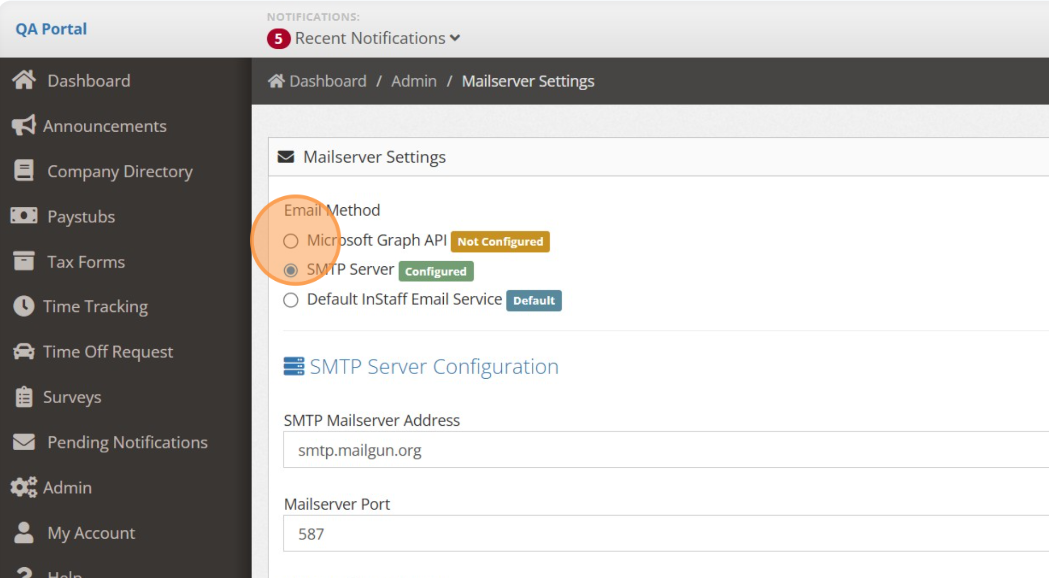
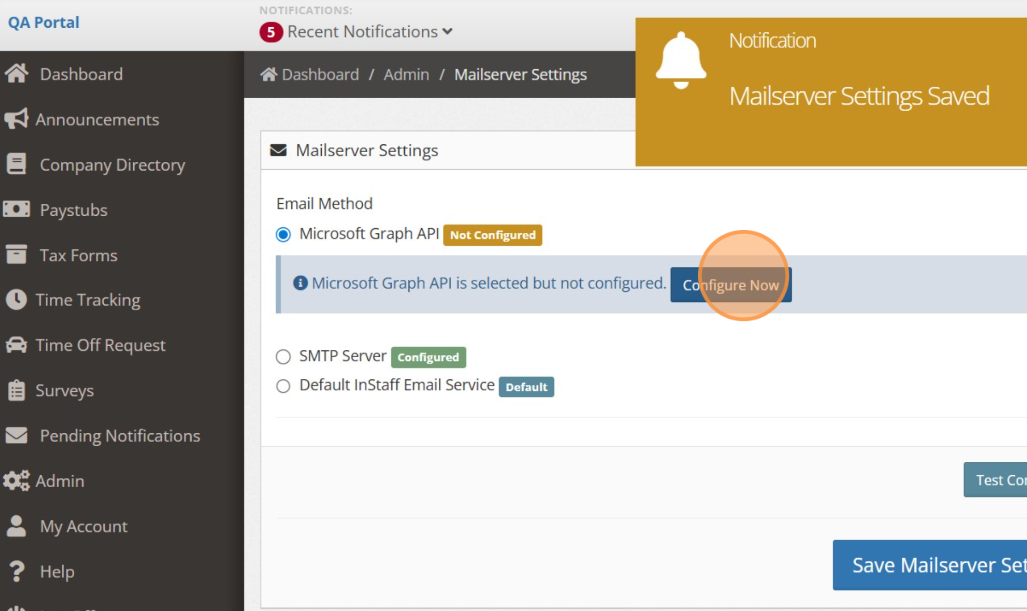
Click “Microsoft Graph API”.
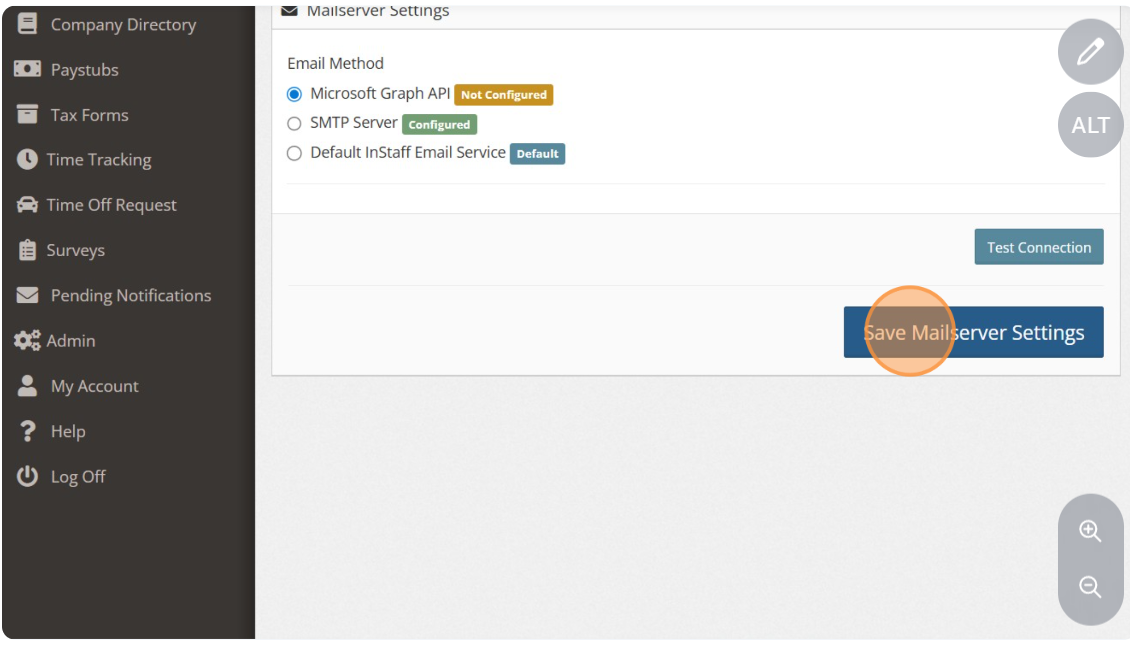
- Click “Save Mailserver Settings”.
- Click “Configure Now”.
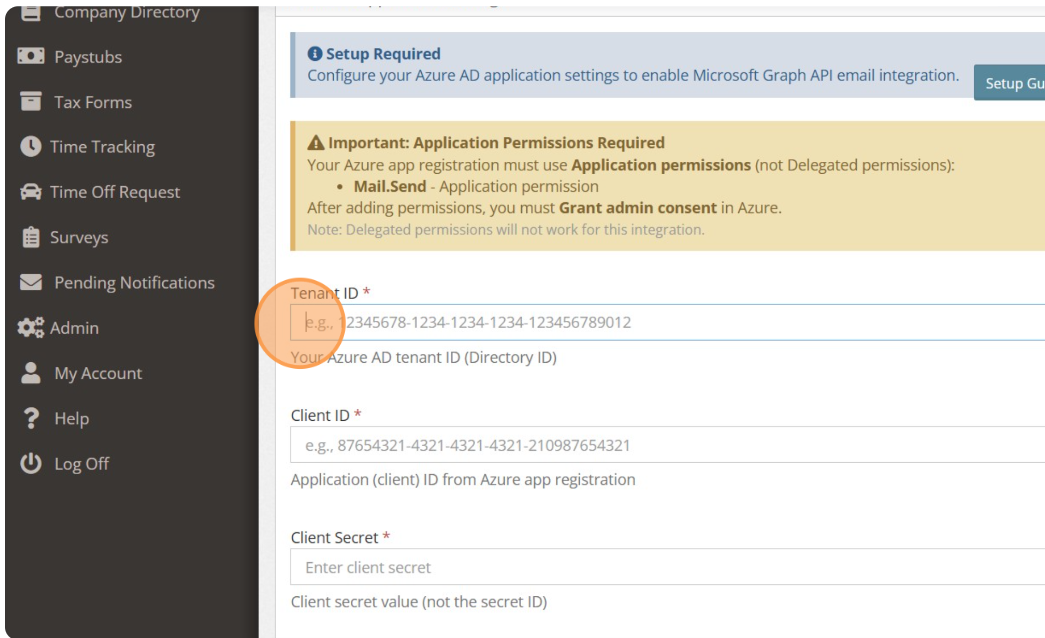
- Enter Tenant ID, Client ID and Client Secret.
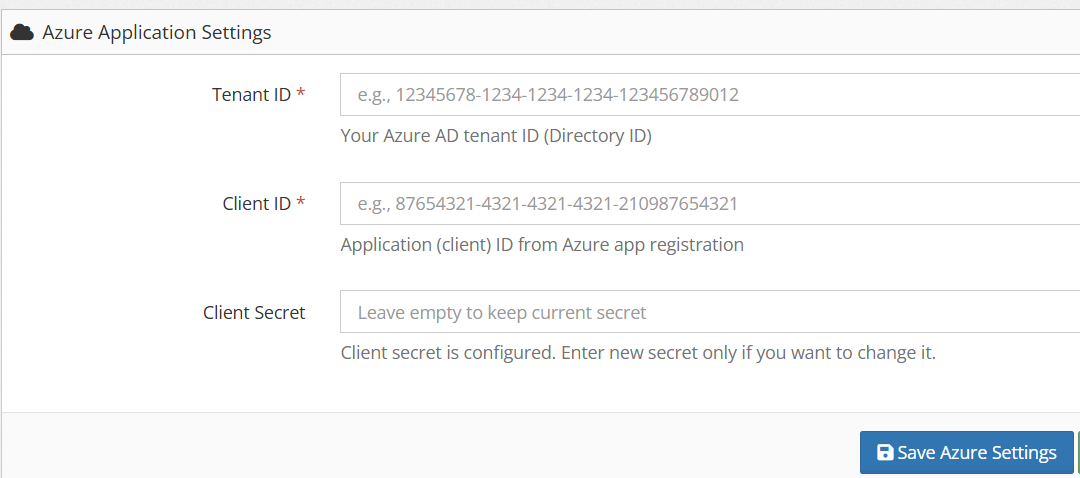
- Click “Save Azure Settings”.
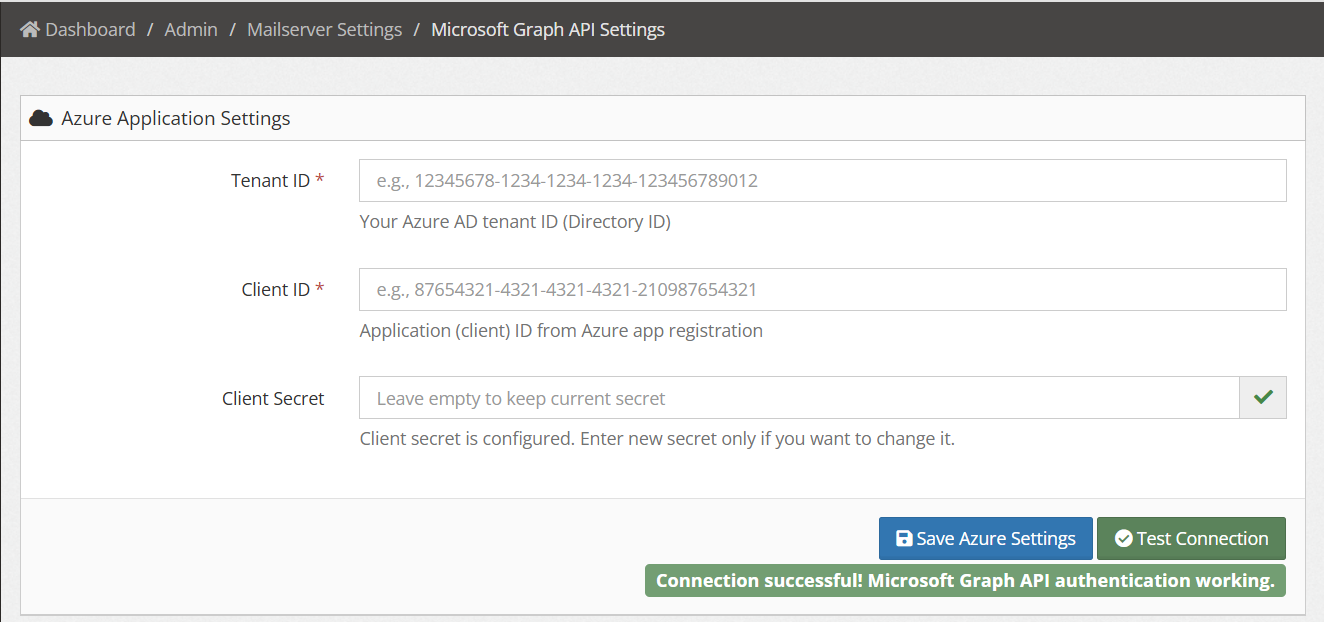
- Click “Test Connection” to test if setup is successful.
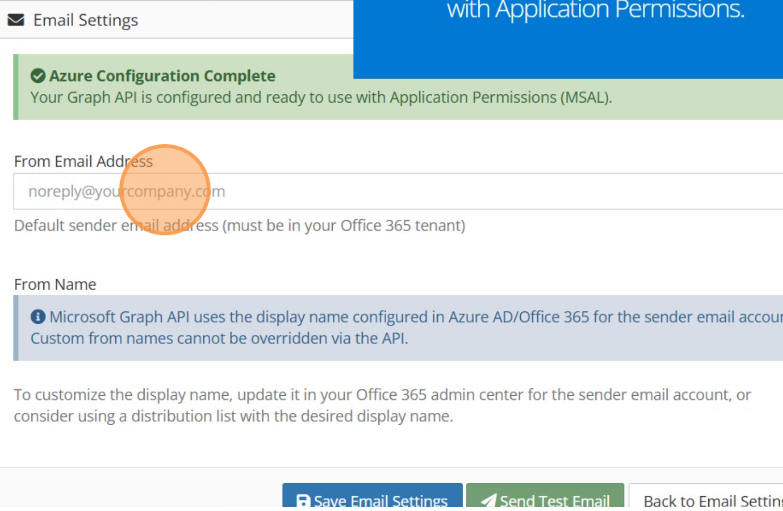
- From Email Settings, enter default email sender from “From Email Address”.
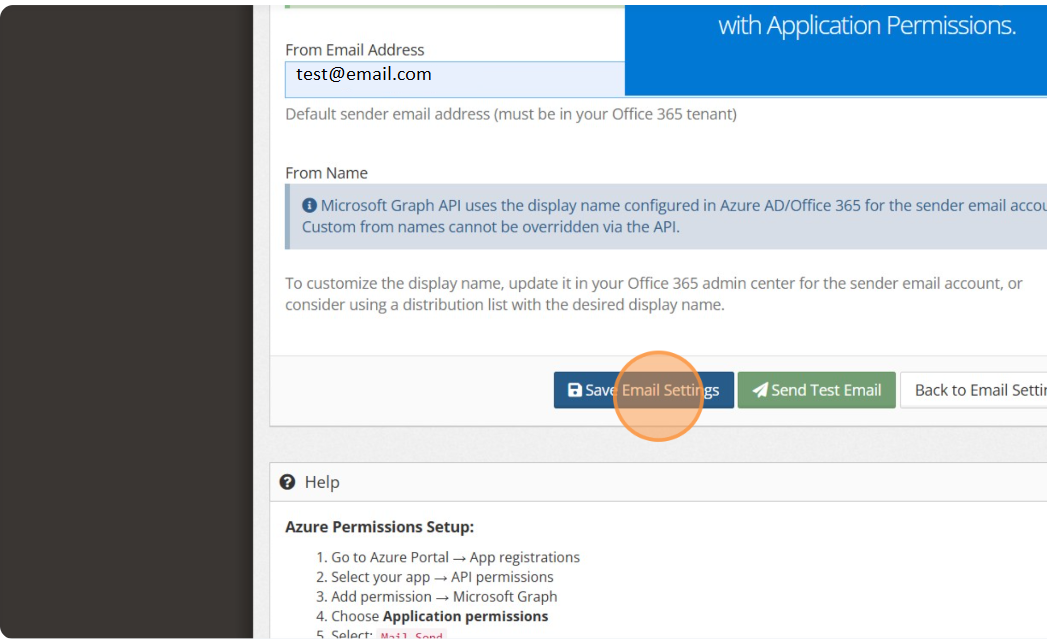
- Click “Save Email Settings”.
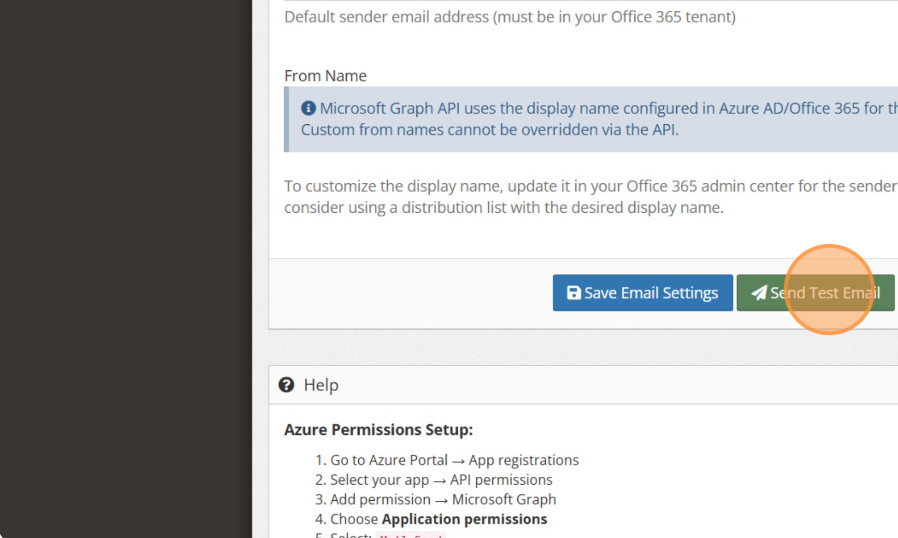
- Test setting by clicking the “Send Test Email”.
- Enter the recipient’s email address.
- Confirm that the test email is received successfully.