Setup your Time Tracking Team Leaders
Team leaders can view/create/update/submit entries for their team members.
Setup Time Tracking Team Leaders
- Log in as Administrator.
- Go to Admin > Time Tracking.
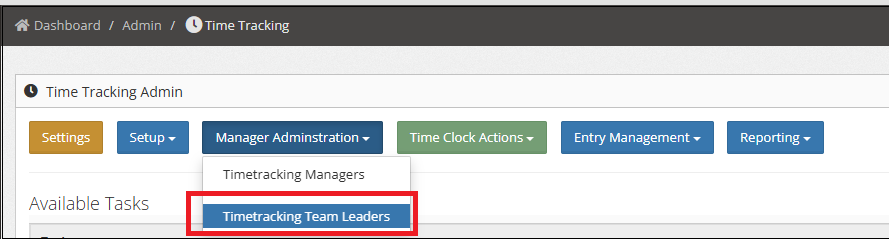
- Click Manager Administration.
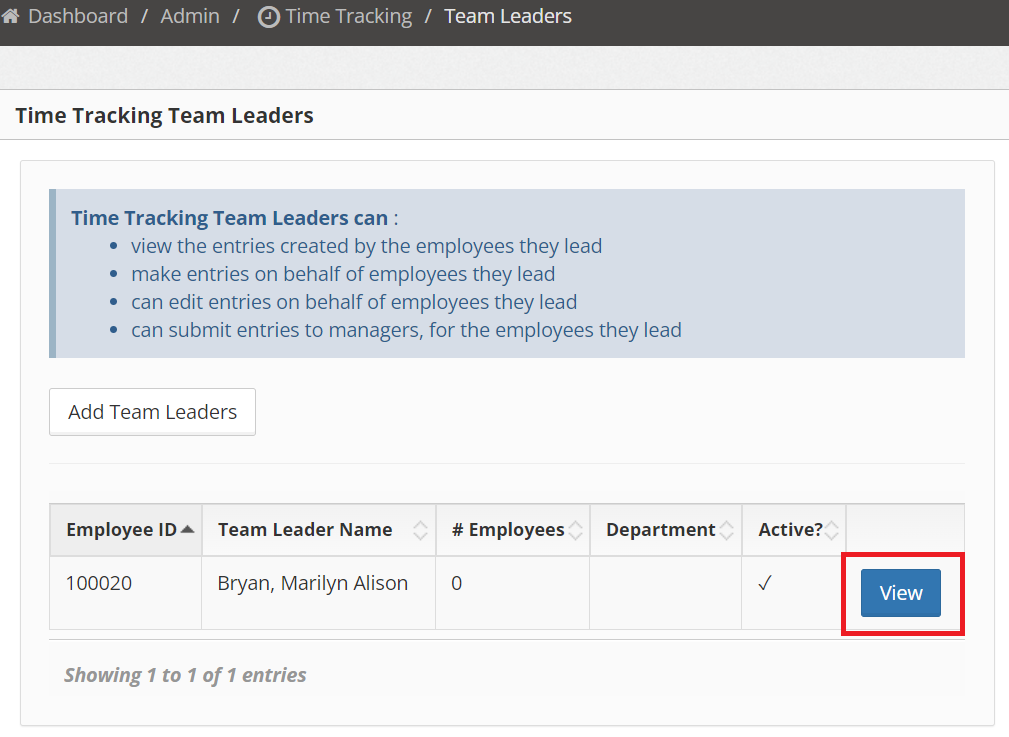
- Click Add Team Leaders button.
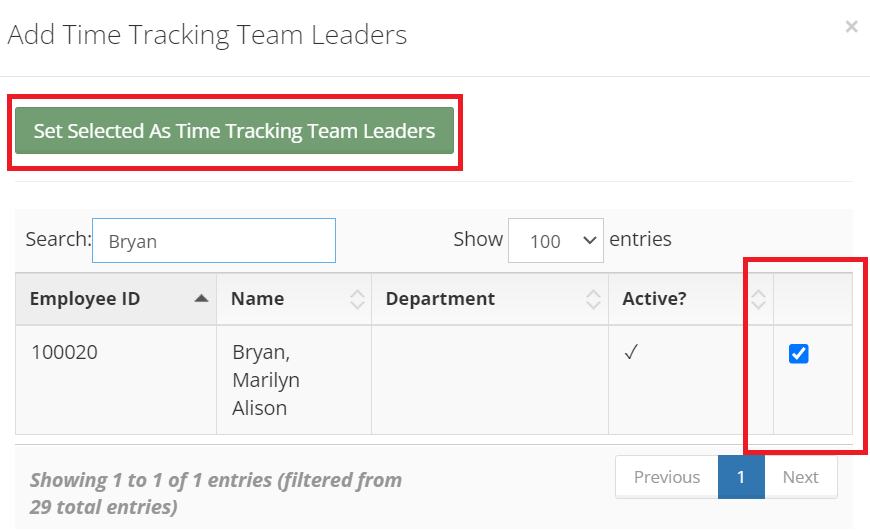
- Search for the Employee to be added as Team Leader.
- Select the employee by checking the checkbox then click Set Selected As Time Tracking Leaders as shown below.
Removing Team Leader from Time Tracking Team Leaders list
- Log in as Administrator.
- Go to Admin > Time Tracking.
- Click the Timetracking Team Leaders button.
- Click the View button of the employee record to be removed.
- Click the Remove [Name of Team Leader] As Time Tracking Team Leader button.
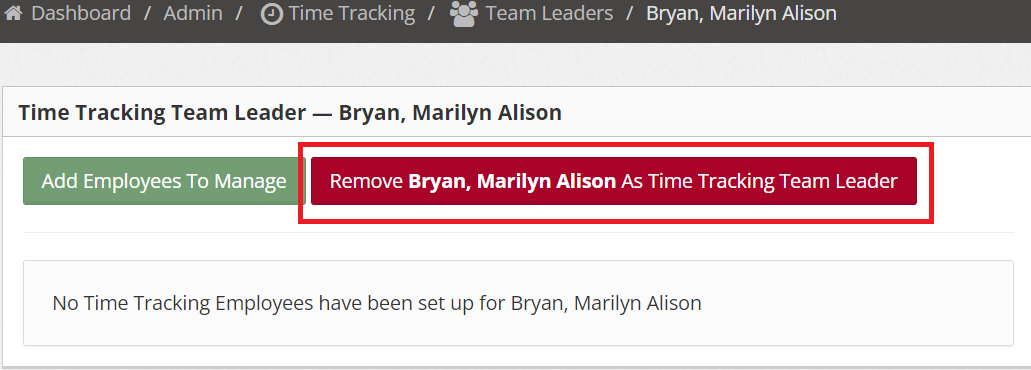
Add Employees to Manage
- Log in as Administrator.
- Go to Admin > Time Tracking.
- Click the Timetracking Team Leaders button.
- Click the View button of the Team Leader record.
- Click Add Employees To Manage button.
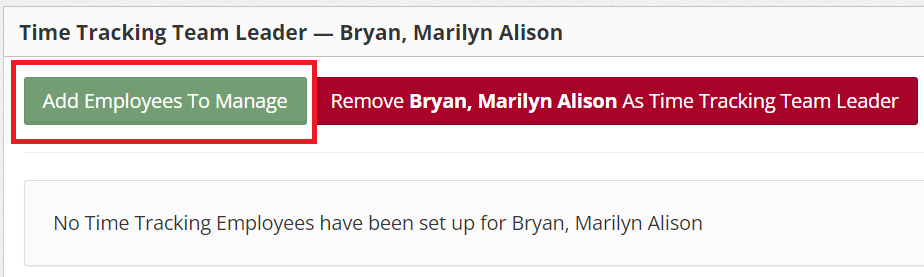
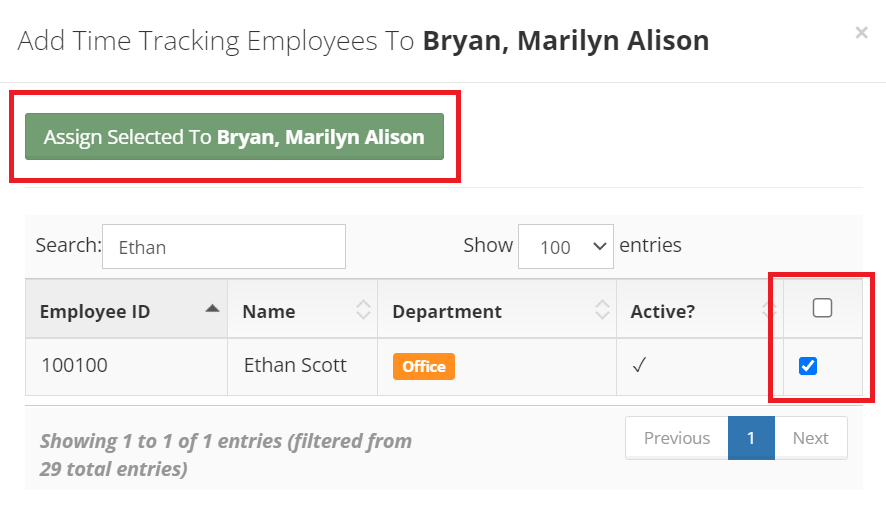
- Select the Employees to be assigned and click Assign Selected to (Team Leader’s Name).
Remove Employee from Team Leader’s Employee to Manage List
- Log in as Administrator.
- Go to Admin > Time Tracking.
- Click the Timetracking Team Leaders button.
- Click the View button of the Team Leader record.
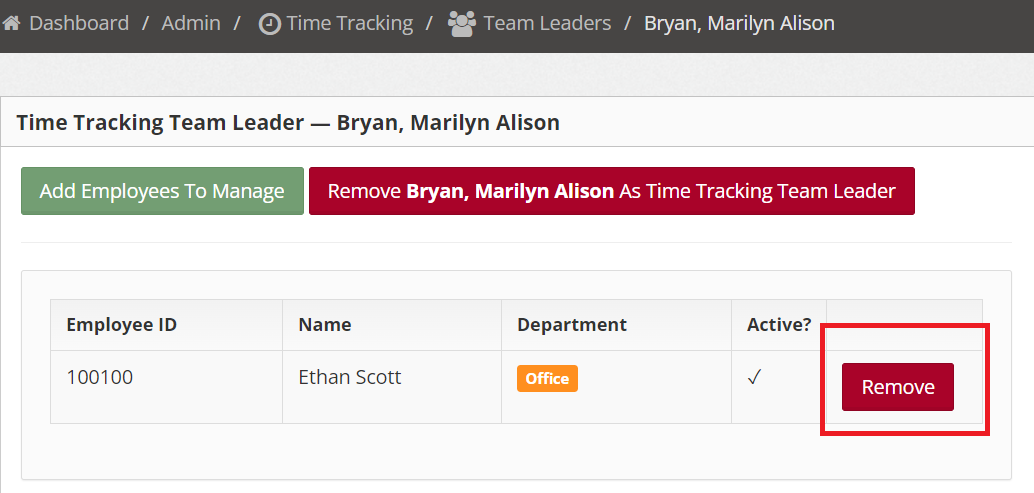
- Click the Remove button of the Employee record to be removed.