
How to Allow Clock Out Only (No Clock in)
The Allow Clock Out Only (No Clock In) feature lets employees record their clock-out time even without a clock-in entry, ensuring accurate time records when a clock-in was missed.
1. Log in to your portal (e.g., yourcompany.instaff.org) as an Administrator.
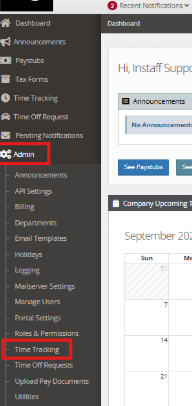
2. From the left-hand menu, go to Admin, then select Time Tracking.
3. Click Settings > Time Clock View
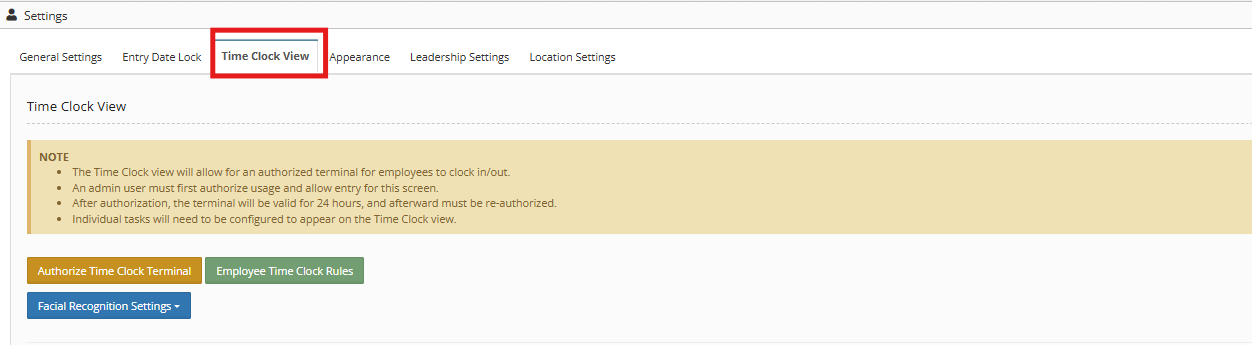
4. Scroll down and go to
Allow Clock Out Only (No Clock in) section.
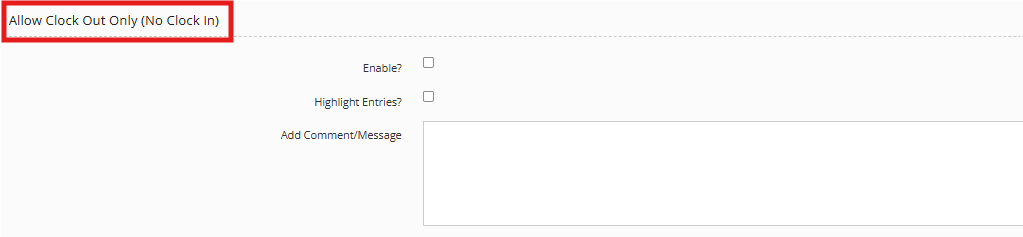
- Check the Enable? checkbox.
- Check Highlight Entries? checkbox. – When enabled, time entries without a clock-in will be highlighted in yellow for easier identification and tracking
- Put a comment in the time entry record by adding it in the Add Comment/Message textbox.
5. Click Save Changes.
You can also check:
Auto Clock Out Set Up
How to Set Custom Time Clock Rules for Employees
Timetracking Editor (Modify Clock In/Clock Out Time)