
How to Register Employees for Facial Recognition
A. Through Facial Recognition – Employee Management
1. Login to your Portal.
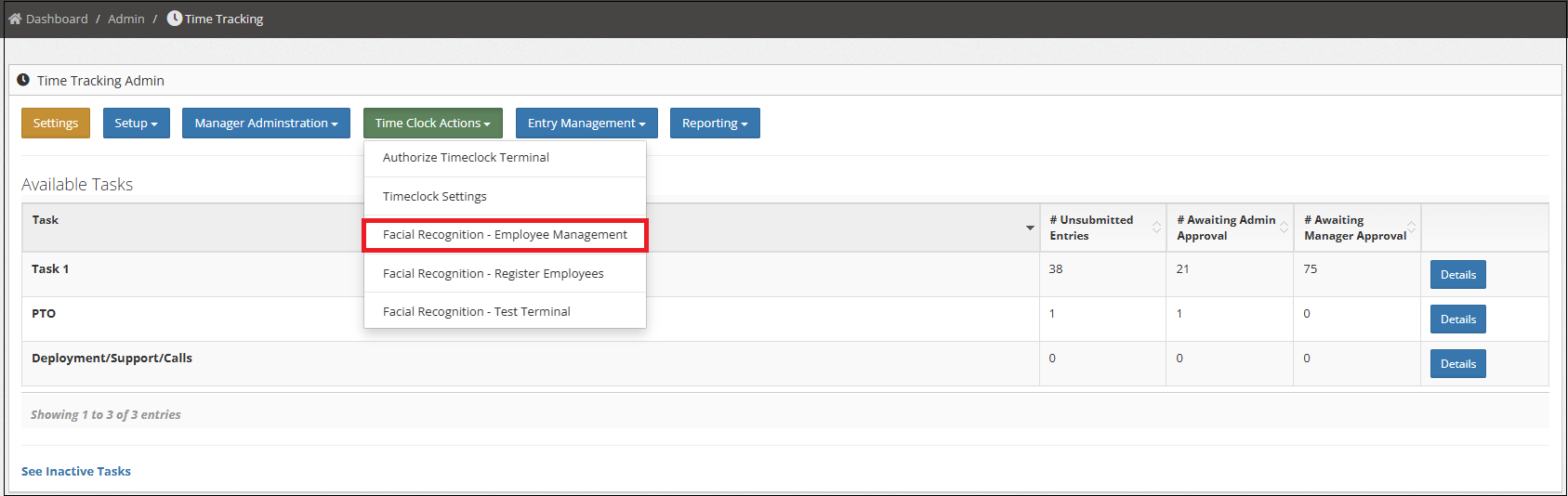
2. Go to Admin > Time Tracking.
3. Click Time Clock Actions > Facial Recognition – Employee Management.
4. Click Manage.

5. Go to Register New Face Image tab.
6. From Use Webcam tab, click Capture Image.
*The portal will access your device’s camera, allowing you to take up to three pictures. If you’re not satisfied with any of the photos, you can click Clear Images to retake them.
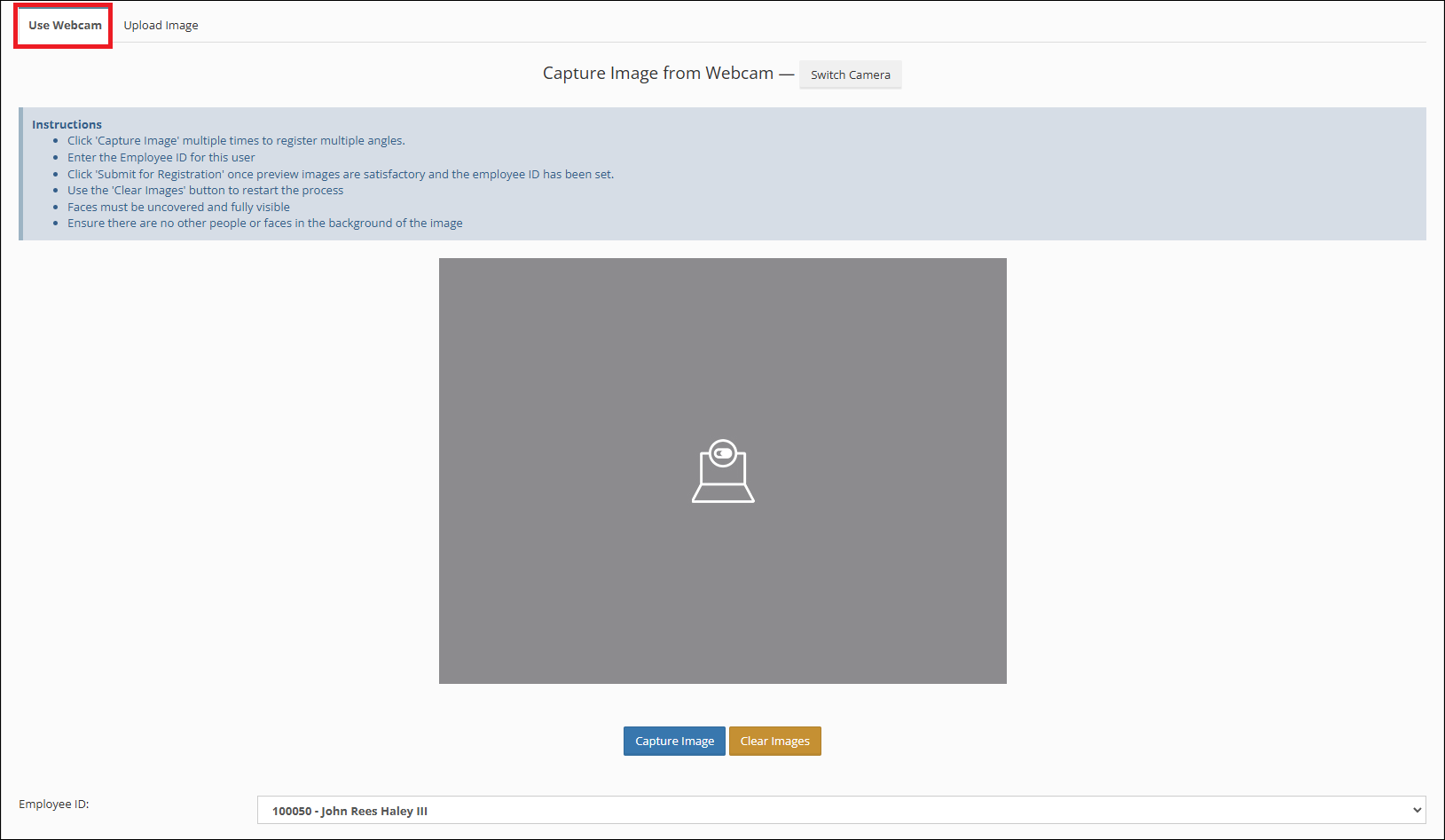
7. Click Submit for Registration when done.
**You can also upload photo using the Upload Image tab.
B. Through Facial Recognition – Register Employees
1. Login to your Portal.
2. Go to Admin > Time Tracking.
3. Click Time Clock Actions > Facial Recognition – Register Employees
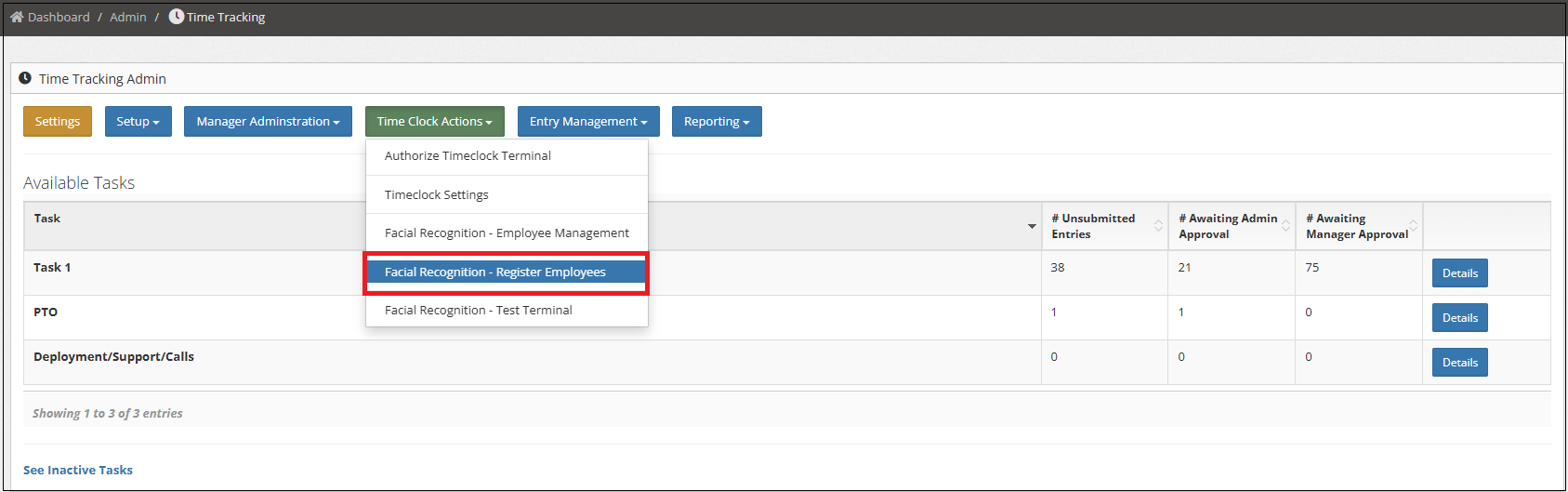
4. From Use Webcam tab, click Capture Image.
*The portal will access your device’s camera, allowing you to take up to three pictures. If you’re not satisfied with any of the photos, you can click Clear Images to retake them.
5. From the Employee ID dropdown, select the Employee ID for the individual you are registering.
6. Click Submit for Registration when done.
**You can also upload photo using the Upload Image tab.