
Generating Time Tracking Reports
You can generate Time Tracking reports by:
- Log in to your portal (e.g., yourcompany.instaff.org) as an Administrator.
- From the left-hand menu, go to Admin, then select Time Tracking.
-
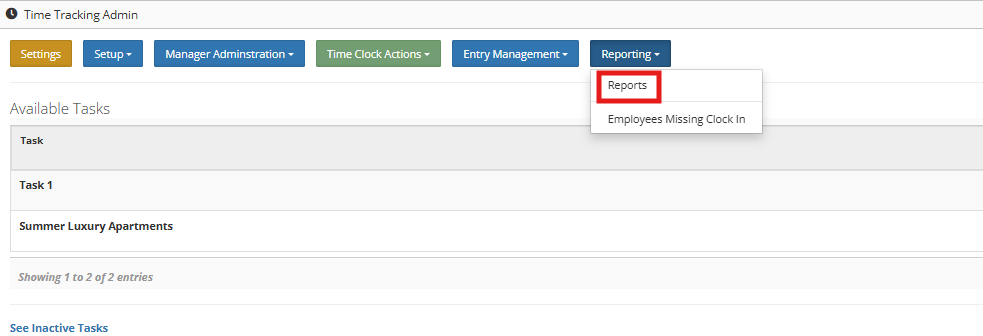
Click the Reporting > Reports button.
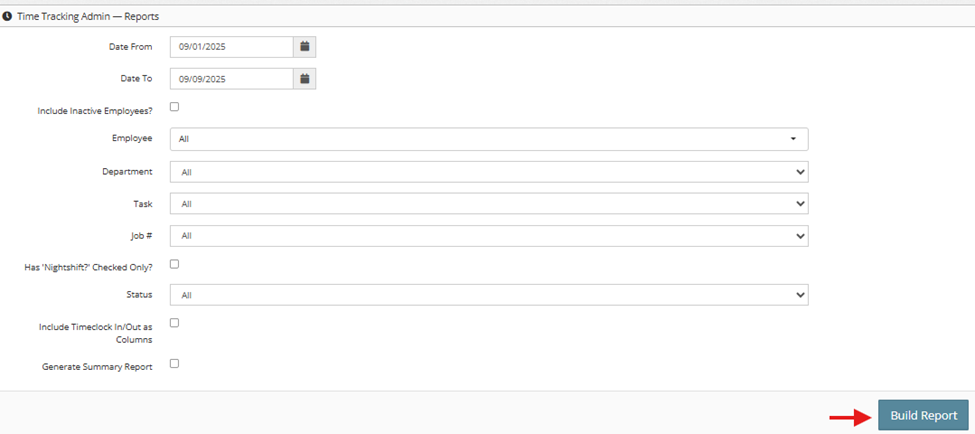
4. Apply filters based on your preferences (date range, status, employee, etc.), then click ‘Build Report’.
Filters available are:
- Date From
- Date To
- Include Inactive Employees? Y/N
- Employee – you can generate for a specific employee or All Employees
- Department – can be for a specific department or All Department
- Task – can be for a specific Task or All Task
- Job Number – can be for a specific Job Number or All Jobs
- Has ‘Nightshift’ Checked Only? Y/N
- Status – can be for a specific Status Number or All Statuses
- Generate Summary Report – Y/N
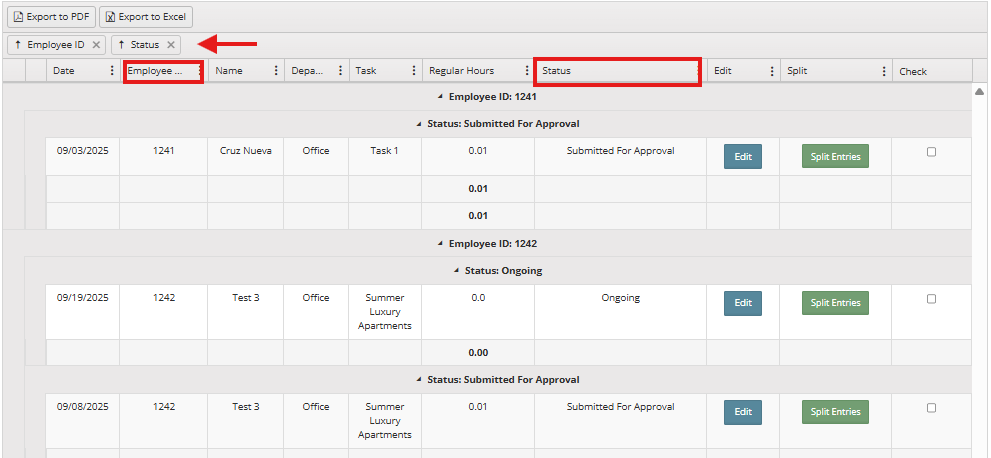
5. You can then choose to export the report as a PDF or Excel file.

6. You can also group the data by columns by dragging a column header (e.g., Employee ID, Date, Name, Status) to the top. This allows you to organize and analyze the data more easily.
You can also check:
Time Tracking Guide
Creating a Time Entry for an Employee
How to Identify Employees Who Missed Clocking In